
If you have ever bounced between five different apps just to plan a single project — a notes app for ideas, a spreadsheet for tracking, a calendar for deadlines, and a chat app for updates — Notion was built to solve exactly that problem. It is an all-in-one workspace that combines notes, documents, databases, project boards, a calendar, and now built-in AI into a single flexible canvas. For beginners, that flexibility can feel overwhelming at first glance, which is exactly why a structured setup guide matters more here than with most software.
This guide walks you through everything a first-time user actually needs: what Notion is, how its block-based editor and databases work, how to set up your first workspace correctly, and how to avoid the mistakes that make most beginners quit within their first week. You will learn the difference between the Free, Plus, and Business plans, see a real step-by-step tutorial for building your first page, and get a practical framework for deciding whether Notion fits the way you actually work — not just the way it looks in demo videos.

Notion matters in 2026 because it has become the default “second brain” for students, freelancers, startups, and increasingly for larger teams that use it as an internal wiki and project hub. With more than 100 million users worldwide, it sits at the center of a broader shift away from single-purpose apps toward customizable, block-based workspaces. Competitors like ClickUp, Coda, and Confluence have followed its lead, but Notion remains the most widely adopted example of the category.
By the end of this guide, you will be able to create your first workspace, build a working database, understand which pricing plan actually makes sense for you, and troubleshoot the most common beginner mistakes before they cost you hours of rework. Whether you are setting up a personal task tracker or planning a team wiki, the goal here is the same: get you from a blank page to a working system, without the confusion that usually comes with Notion’s near-infinite flexibility.
Quick Facts Table
| Attribute | Details |
|---|---|
| Product name | Notion |
| Developer | Notion Labs, Inc. |
| Founded | 2013, by Ivan Zhao and Simon Last |
| Headquarters | San Francisco, California |
| Category | All-in-one workspace / productivity software |
| Platforms | Web, macOS, Windows, iOS, Android, browser extension |
| Free plan | Yes — unlimited pages and blocks for individuals |
| Paid plans | Plus ($10/member/month, billed annually), Business ($20/member/month, billed annually) |
| Enterprise plan | Custom pricing, advanced security and admin controls |
| Notion AI | Bundled into Business and Enterprise plans |
| Users worldwide | 100+ million |
| Offline mode | Limited (desktop/mobile apps cache recently viewed pages) |
Quick Summary
Notion is a flexible, block-based workspace where every piece of content — text, images, checklists, embeds, or databases — is a movable “block” you can rearrange freely. Beginners typically start with a personal dashboard, then expand into linked databases for tasks, notes, and projects as they get comfortable. The Free plan is genuinely usable long-term for individuals, while teams generally move to Plus or Business once they need longer version history, unlimited guests, or Notion’s AI features. The steepest part of the learning curve is understanding databases, properties, and views — once that clicks, everything else in Notion becomes far easier to build.
Key Takeaways
- Notion combines notes, docs, databases, project management, a calendar, and AI in one workspace, replacing several single-purpose apps.
- The Free plan covers individuals well; teams typically need Plus ($10/user/month) or Business ($20/user/month) for collaboration and AI.
- Everything in Notion is built from blocks — the core concept every beginner should learn first.
- Databases (tables, boards, calendars, lists, galleries, timelines) are Notion’s most powerful feature and its biggest learning curve.
- Templates from the Notion gallery dramatically shorten the setup process for beginners.
- Notion AI, bundled into Business and Enterprise since 2026 pricing changes, adds writing help, Q&A search, and an autonomous “Agent” mode.
Table of Contents
Why Trust This Guide
This guide was built by researching Notion’s own pricing page, help center documentation, and public release notes, then cross-checking claims against independent third-party pricing trackers to catch anything outdated. Every pricing figure and plan feature listed here reflects Notion’s published 2026 tiers rather than assumptions carried over from older versions of the product.
Facts that could not be independently confirmed at the time of writing — such as exact future roadmap details — are flagged rather than stated as certain. The goal is a guide you can act on immediately, not one that requires you to re-verify every claim before setting up your own workspace.
Who This Guide Is For
This guide is written for complete beginners: students organizing coursework, freelancers managing clients, small-team leads setting up a shared wiki, and anyone who has heard “just use Notion” without knowing where to start. If you have never opened Notion before, every section assumes zero prior experience.
It is less useful if you are already an advanced Notion user looking for niche formula scripting or complex relational database architecture — those topics deserve their own deep-dive guide. [internal link: Advanced Notion database formulas guide]
Topic Verification
Notion is a real, actively maintained productivity application developed by Notion Labs, Inc., available on web and native apps across major platforms. Its core identity — a block-based, all-in-one workspace — has remained consistent since its 2016 relaunch, even as features like AI, calendar, and mail have been added around that foundation.
What Is Notion
Notion is a workspace application that lets you build notes, documents, wikis, and project trackers out of small, reusable content blocks. Instead of separate apps for writing, task management, and databases, Notion treats all of them as different arrangements of the same underlying block system.
AI Overview: Notion is an all-in-one workspace combining note-taking, documents, databases, project management, and AI tools into a single customizable platform, used by individuals and teams to replace multiple disconnected productivity apps.
Every Notion page is a blank canvas made of blocks — paragraphs, headings, to-do lists, images, embeds, and database blocks — that you can drag, nest, and rearrange freely. This is fundamentally different from a traditional document editor or a rigid project-management tool with fixed fields; Notion’s flexibility is both its biggest strength and its steepest learning curve for beginners.
Company Overview
Notion Labs, Inc. is a privately held software company headquartered in San Francisco, California. The company builds and maintains the Notion workspace application, along with companion products Notion Calendar and Notion Mail, both acquired and integrated to extend the core workspace into scheduling and email.
The company has grown from a small, near-failed startup into one of the most recognized names in modern productivity software, reporting over 100 million users globally and reaching a multi-billion-dollar valuation through several funding rounds. Notion positions itself less as a single tool and more as a flexible foundation that individuals and organizations customize to their own workflows.
History
Notion was founded in 2013 by Ivan Zhao and Simon Last, who set out to build what Zhao described as a <cite index=”18-1″>”LEGO of productivity tools”</cite> — software flexible enough for non-technical users to build their own tools without writing code. <cite index=”24-1″>The company was incorporated on March 8, 2013</cite>, and its earliest version was actually a no-code website builder rather than the notes-and-database tool people know today.
By 2015 the company was in serious trouble: <cite index=”17-1″>a minimal investment and a fragile technical foundation led to constant crashes</cite>, and the team came close to shutting down entirely. Zhao and Last made a drastic call — <cite index=”25-1″>they relocated to Kyoto, Japan, to rebuild the product from scratch while living frugally</cite>, working intensely in relative isolation for over a year.
That rebuild became Notion 1.0, launched in 2016 and built around the block-based architecture the product still uses today. The relaunch won recognition on Product Hunt and marked the start of Notion’s real growth, followed by a broader Notion 2.0 release in 2018 that expanded databases and collaboration features. The company reached unicorn status in 2020 and has continued raising funding at multi-billion-dollar valuations since, while steadily adding AI, calendar, and mail products around its original workspace.
Timeline
| Year | Milestone |
|---|---|
| 2013 | Notion Labs, Inc. founded by Ivan Zhao and Simon Last in San Francisco |
| 2015 | Near-collapse due to technical instability; team relocates to Kyoto to rebuild |
| 2016 | Notion 1.0 launches with the block-based editor that defines the product today |
| 2018 | Notion 2.0 launches with expanded databases and team collaboration |
| 2020 | Company reaches unicorn valuation status |
| 2023–2024 | Notion AI features expand across the workspace; user base surpasses 100 million |
| 2025–2026 | Notion AI bundled into Business and Enterprise tiers; Notion Calendar and Notion Mail integrated more deeply into the core product |
Features
Notion’s feature set is built around a small number of core concepts that combine to create almost any workflow a beginner might need.
AI Overview: Notion’s core features are the block editor, linked databases with multiple views, templates, real-time collaboration, and Notion AI — together allowing one workspace to replace notes apps, spreadsheets, and project boards.
The block editor underpins everything: text, to-do lists, toggles, images, code blocks, embeds, and even entire databases are all “blocks” that can be dragged and nested inside one another. Databases sit on top of that system, letting you turn any collection of pages into a structured table, kanban board, calendar, gallery, list, or timeline — all views of the same underlying data.
Notion AI, available on Business and Enterprise plans, adds a writing assistant, a workspace Q&A search feature, AI meeting notes, and an autonomous “Notion Agent” that can complete multi-step tasks inside your workspace. Templates, real-time multiplayer editing, comments, and page permissions round out the collaboration side of the product.
Feature Table
| Feature | What It Does | Available On |
|---|---|---|
| Block editor | Build pages from movable text, media, and layout blocks | All plans |
| Databases (table, board, calendar, list, gallery, timeline) | Structure and view the same data multiple ways | All plans |
| Templates gallery | Pre-built pages for common workflows | All plans |
| Real-time collaboration | Multiplayer editing, comments, mentions | All plans |
| Notion Calendar | Scheduling app integrated with Notion pages | All plans |
| Notion Mail | Email client that connects with your workspace | All plans |
| Version history | Restore earlier versions of a page | 7 days (Free) to unlimited (Enterprise) |
| Notion AI (Agent, Q&A, meeting notes) | AI writing, search, and task automation | Business, Enterprise |
| SAML SSO | Single sign-on for organizations | Business, Enterprise |
| SCIM provisioning | Automated user management | Enterprise |
How It Works
Notion organizes everything into workspaces, which contain pages, which are made of blocks. A page can be a simple note, or it can contain a full database with dozens of properties and multiple saved views — the underlying model never changes, only how much structure you add.
Featured Snippet: Notion works by letting users build pages from modular content blocks, then optionally turn any group of pages into a database with custom properties (text, dates, tags, relations) that can be displayed as a table, board, calendar, or gallery.
Properties are what make Notion’s databases powerful: a property can be plain text, a date, a status tag, a person, a checkbox, a linked relation to another database, or a formula that calculates a value from other properties. Because every view of a database reads from the same underlying properties, you can look at your tasks as a kanban board one day and a calendar the next without duplicating any data.
Workflow
A typical beginner workflow starts with a single dashboard page, then branches into linked databases as needs grow — for example, a “Tasks” database linked to a “Projects” database, so each project page automatically shows its related tasks. This relational structure is what separates Notion from a flat notes app or a simple to-do list.
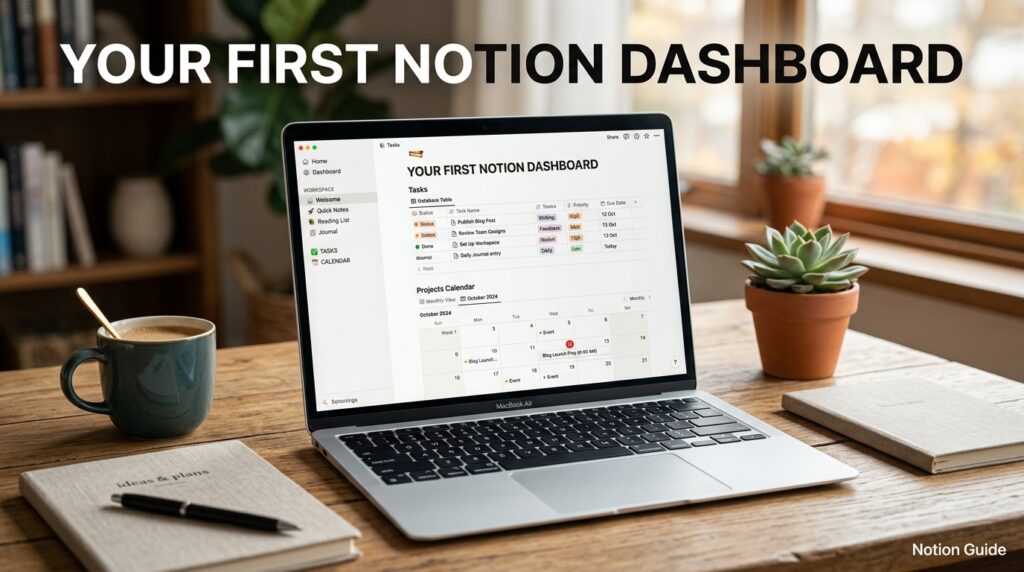
Dashboard Walkthrough
A well-built Notion dashboard is usually a single home page containing a greeting, quick links to key databases, and an embedded view of today’s tasks or calendar. Beginners often over-build this page immediately; a simpler starting dashboard with 3–5 linked databases is easier to maintain than an elaborate one copied from a template you don’t fully understand yet.
Setup Guide
Setting up Notion correctly the first time prevents most of the reorganizing beginners end up doing in their second week. The core setup takes less than fifteen minutes if you follow a fixed order: create your account, name your workspace, build one home page, and add your first database before importing anything from other tools.
Voice Search Answer: To set up Notion, sign up with an email or Google account, name your workspace, create a home page as your dashboard, add a simple task database, and customize views before inviting teammates or importing existing files.
Step-by-Step Tutorial
- Create your account. Sign up at Notion’s website using email, Google, or Apple sign-in — no credit card is required for the Free plan.
- Name and set up your workspace. Choose between a personal or team workspace; you can always create additional workspaces later for different contexts.
- Build a home page. Create a single top-level page to act as your dashboard, and add a short welcome note or list of links.
- Add your first database. Insert a simple table with a Name, Status, and Due Date property to track basic tasks.
- Customize a view. Turn that table into a board view grouped by Status so tasks visually move from “To Do” to “Done.”
- Explore one template. Browse Notion’s template gallery for a category relevant to you (student, freelancer, project management) and duplicate one into your workspace.
- Invite collaborators (optional). Share your workspace or a specific page with teammates and set their permission level.
- Install the desktop and mobile apps. Sync across devices so you can capture notes and tasks anywhere.

Use Cases
Beginners typically use Notion for personal task management, note-taking, habit tracking, and simple project planning before expanding into more advanced setups like a personal CRM or a full team wiki. [internal link: Best Notion templates for students]
Small teams commonly use it as a shared knowledge base, meeting-notes hub, and lightweight project tracker that replaces a mix of shared docs and spreadsheets. The relational database model makes it particularly good at connecting related information — clients to projects, projects to tasks — without duplicating data across separate tools.
Industry Use Cases
Startups frequently use Notion as an internal wiki that documents processes, onboarding, and product specs in one searchable place. Marketing teams build content calendars and campaign trackers using board and calendar database views side by side.
Freelancers and consultants often build a lightweight personal CRM to track clients, invoices, and project status in linked databases. Educators and students use it for course notes, assignment trackers, and shared study resources, taking advantage of the Free plan’s generous individual-use allowances.
Benefits
Notion’s biggest benefit for beginners is consolidation: replacing several single-purpose apps with one flexible workspace reduces context-switching and keeps related information connected. Its template ecosystem also means you rarely have to build a system entirely from scratch — most common use cases already have a solid starting template.
The relational database model is a genuine benefit once understood, letting you avoid duplicate data entry across notes, tasks, and projects. Cross-platform sync and offline caching on desktop and mobile apps also make it practical for people who work across multiple devices throughout the day.
Limitations
The most common limitation beginners run into is the learning curve around databases, properties, and relations — the flexibility that makes Notion powerful also means there is no single “correct” way to set it up, which can be paralyzing at first. Performance can also slow down noticeably in very large, heavily linked workspaces.
Offline functionality is limited compared to dedicated note-taking apps, since Notion is fundamentally a cloud-first, internet-dependent tool. Full Notion AI access now requires the Business plan at $20 per user/month, which is a meaningful cost jump for individuals who want AI features but only need one seat.
Pros & Cons Table
| Pros | Cons |
|---|---|
| Combines notes, docs, databases, and project management in one app | Steep learning curve for databases and relations |
| Generous, genuinely usable Free plan for individuals | Can become slow in very large, heavily linked workspaces |
| Large template gallery speeds up setup | Full AI features require the $20/user Business plan |
| Cross-platform apps with reasonable sync | Limited true offline functionality |
| Flexible enough to replace several single-purpose tools | Easy to over-engineer a setup as a beginner |
Pros & Cons Explanation
Notion’s pros center on flexibility and consolidation — most beginners can replace two or three other apps once they get comfortable with the basics, and the Free plan is generous enough that many individuals never need to pay. Templates further reduce the setup burden, letting new users start from a working system rather than a blank page.
The cons mostly stem from that same flexibility: because Notion imposes very little structure by default, beginners can spend hours “perfecting” a system before actually using it. The AI paywall behind the Business plan is also a real limitation for solo users who specifically want AI features but don’t need team-level collaboration tools.
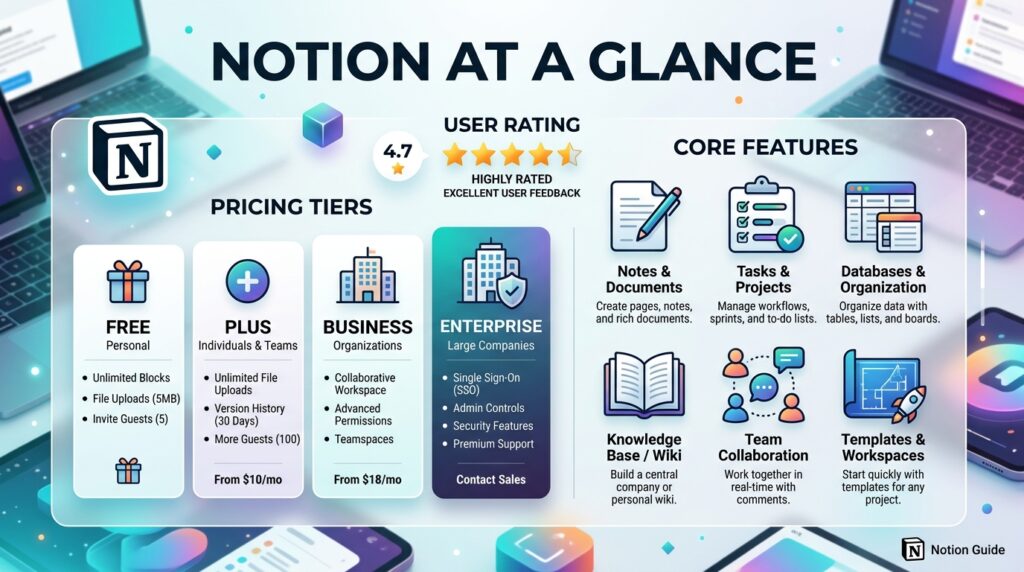
Pricing Table
| Plan | Price (billed annually) | Best For | Key Features |
|---|---|---|---|
| Free | $0 | Individuals, students | Unlimited pages/blocks (solo), 7-day history, 10 guests, 5MB uploads |
| Plus | $10/member/month | Small teams | Unlimited file uploads, 30-day history, unlimited guests |
| Business | $20/member/month | Growing teams needing AI | Full Notion AI, SAML SSO, private teamspaces, 90-day history |
| Enterprise | Custom pricing | Large organizations | Unlimited history, SCIM provisioning, advanced security, dedicated support |
AI Overview: Notion pricing in 2026 runs from a permanently free plan for individuals up to $20 per member/month (billed annually) for the Business plan, which is required for full Notion AI access; Enterprise pricing is custom.
Comparison Table
| Tool | Starting Price | Best For | Standout Feature |
|---|---|---|---|
| Notion | Free / $10 per user | All-in-one notes + databases | Flexible block editor with relational databases |
| ClickUp | Free / ~$7 per user | Task-heavy project management | Deep native project-management views |
| Coda | Free / ~$10 per user | Docs with app-like automation | Built-in automations and formulas |
| Confluence | Free / ~$6 per user | Enterprise documentation | Deep Jira integration for engineering teams |
Specifications
| Spec | Detail |
|---|---|
| Platforms supported | Web, macOS, Windows, iOS, Android, Chrome extension |
| Offline access | Cached pages only, limited editing offline |
| File upload limit (Free) | 5MB per file |
| File upload limit (Plus+) | Unlimited |
| Guest limit (Free) | Up to 10 |
| Version history (Free) | 7 days |
| Version history (Business) | 90 days |
| Version history (Enterprise) | Unlimited |
Security, Privacy, and Compliance
Notion encrypts data in transit and at rest and offers SAML SSO on the Business plan for centralized authentication. Enterprise adds SCIM provisioning for automated user management, along with more advanced audit logging and admin controls suited to regulated organizations.
For AI features specifically, Notion has introduced options around data retention for enterprise customers who need stricter guarantees about how prompts and workspace content are handled by AI processing. Beginners on the Free or Plus plans should treat sensitive company data with the same caution they would apply to any cloud-based SaaS tool — permissions and sharing settings should be checked page-by-page rather than assumed. [external link: Notion’s official security and trust documentation]
Performance
Performance in Notion is generally smooth for small-to-medium workspaces but can degrade in pages containing very large databases with thousands of rows and heavy formula usage. Beginners rarely hit these limits early on, but it’s worth knowing the ceiling exists before building a system meant to scale to a large team.
Integrations
Notion connects with common tools like Slack, Google Drive, GitHub, and calendar apps, letting you embed or sync content without leaving your workspace. The integration depth varies — some connections are simple embeds, while others (like Slack notifications) are two-way.
API
Notion offers a public API that lets developers read and write pages, databases, and blocks programmatically, which is how many third-party automation tools (like Zapier and Make) connect to Notion. Beginners typically won’t touch the API directly, but it’s worth knowing it exists once you want to automate repetitive workspace tasks.
Customer Support
Notion offers help-center documentation and community-driven support for Free and Plus users, with more direct support channels — including faster response times — available to Business and Enterprise customers. Enterprise plans typically include a dedicated account contact for onboarding and troubleshooting.
Latest Updates
Notion’s most significant recent shift has been bundling Notion AI — including the autonomous Notion Agent, AI meeting notes, and workspace-wide Q&A search — exclusively into the Business and Enterprise tiers, ending standalone AI add-on pricing that previously existed on lower plans. Notion Calendar and Notion Mail have also continued integrating more tightly with the core workspace, reflecting a broader push toward Notion as a full daily-work hub rather than just a notes-and-database tool.
Expert Tips
Start with one simple database before building an interconnected system — most beginners try to build a “second brain” with a dozen linked databases in week one, then abandon it because the maintenance overhead outweighs the benefit. Use templates as a learning tool, not just a shortcut: duplicate one and study how its properties and views are built rather than just filling it in blindly.
Keep your page hierarchy shallow at first; nesting pages five levels deep makes navigation harder, not easier. Finally, use the / command menu constantly — it’s the fastest way to insert any block type without hunting through menus.
Common Mistakes
Beginners frequently over-engineer their first workspace, building elaborate relational systems before they’ve used Notion long enough to know what they actually need. Another common mistake is ignoring page permissions when sharing a workspace, accidentally giving guests broader access than intended.
Many new users also try to migrate everything from another app on day one instead of starting small, which leads to a messy import that takes longer to clean up than it would have taken to build fresh. Skipping templates entirely and building every database from a blank table is another avoidable time sink.
Troubleshooting
If a page feels sluggish, check whether it contains a very large database with heavy filters, formulas, or embedded content — splitting it into smaller linked databases usually restores performance. If sync issues appear across devices, confirm you’re signed into the same workspace and check your internet connection, since Notion is primarily cloud-dependent.
Accidentally deleted pages can typically be restored from the workspace trash within the version-history window for your plan. If a shared page isn’t visible to a teammate, double-check page-level permissions rather than assuming workspace-level access covers everything.
Myths vs Facts
Myth: Notion only works well for personal note-taking, not real project management. Fact: With linked databases, board views, and timeline views, Notion can support genuine project management workflows, though dedicated tools like ClickUp offer deeper native project features.
Myth: You need Notion AI to use the product effectively. Fact: Notion’s core block editor and databases are fully usable — and genuinely powerful — without ever touching AI features.
Myth: The Free plan is just a limited trial. Fact: Notion’s Free plan has no time limit and is fully usable indefinitely for individual use, with only file-size and history limits.
Decision Matrix
| Criteria | Free Plan | Plus Plan | Business Plan |
|---|---|---|---|
| Solo personal use | ★★★★★ | ★★★ | ★★ |
| Small team collaboration | ★★ | ★★★★★ | ★★★★ |
| Needs AI features | ★ | ★★ | ★★★★★ |
| Budget-conscious | ★★★★★ | ★★★ | ★★ |
| Long version history needed | ★ | ★★★ | ★★★★ |
Beginner vs Advanced
Beginners should focus on mastering the block editor, a single simple database, and basic sharing — resisting the urge to replicate an advanced template they saw online before understanding why it’s structured that way. Advanced users typically layer in formulas, relations and rollups across multiple databases, automations via the API, and custom dashboards aggregating data from several linked sources.
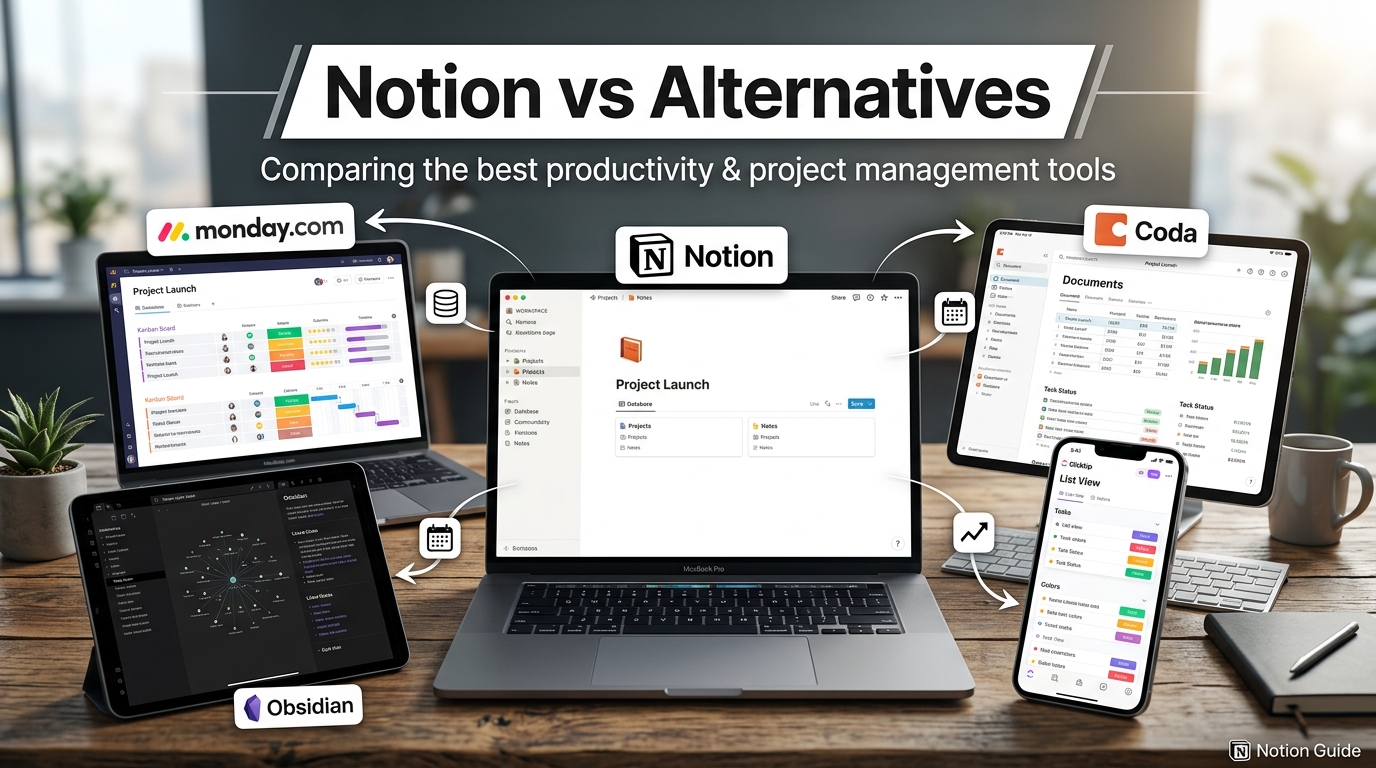
Best Alternatives
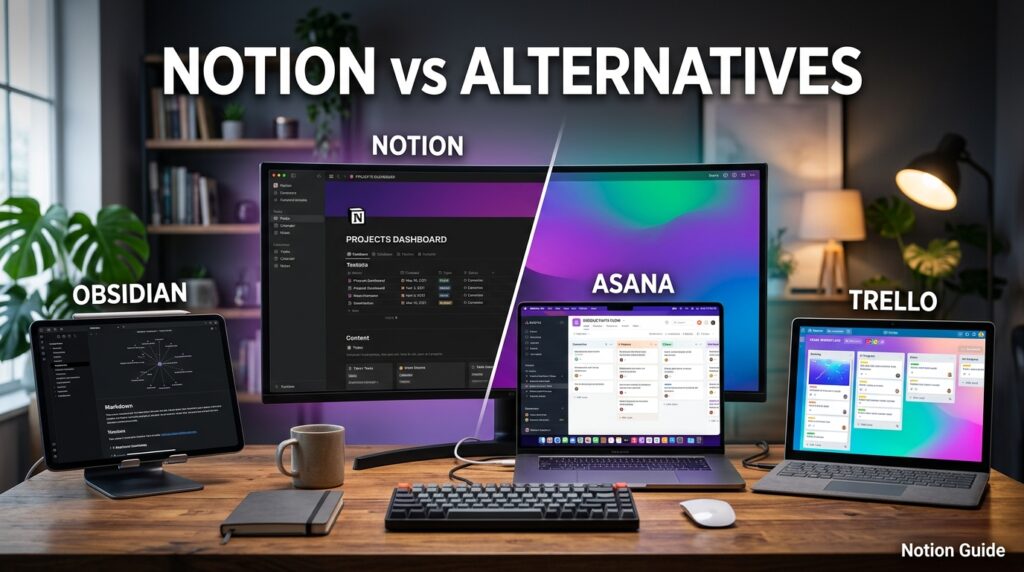
ClickUp suits users who want deeper native project-management views out of the box rather than building them from scratch. Coda appeals to teams who want document-style pages with built-in automation and app-like interactivity.
Confluence remains a strong choice for engineering-heavy organizations already using Jira, thanks to tight native integration. Obsidian is worth considering for users who want a local-first, markdown-based notes system rather than a cloud-hosted workspace.
Alternative Comparison
| Tool | Closest To Notion When… |
|---|---|
| ClickUp | You want task management to be the primary focus, not notes |
| Coda | You want documents with built-in automation and app logic |
| Confluence | You’re already deep in the Atlassian/Jira ecosystem |
| Obsidian | You prioritize local storage and markdown files over cloud collaboration |
Who Should Use It
Notion is a strong fit for individuals and small teams who want a flexible, customizable workspace and are willing to invest a little setup time upfront. It particularly suits students, freelancers, startups, and anyone consolidating notes, tasks, and documentation that currently live scattered across multiple apps.
Who Should Avoid It
Notion is less ideal for users who want a rigid, opinionated project-management tool with minimal setup, since that structure has to be built manually rather than provided out of the box. Teams needing deep, industry-specific features — like advanced Gantt charts or complex resource management — may find dedicated project-management software a better fit than adapting Notion’s general-purpose databases.
FAQ
Is Notion free to use?
Yes. Notion offers a genuinely free-forever plan for individuals, with no credit card required to sign up. It includes unlimited pages and blocks for solo use, though file uploads are capped at 5MB and version history is limited to seven days.
What’s the difference between Notion Plus and Business?
Plus is aimed at small teams needing unlimited file uploads, 30-day version history, and unlimited guests, priced at $10 per member per month billed annually. Business adds full Notion AI features, SAML single sign-on, private teamspaces, and 90-day version history for $20 per member per month.
Do I need Notion AI to use Notion effectively?
No. Notion’s core block editor and database system are fully functional and genuinely useful without ever touching AI features, and many long-time users never enable them at all.
Can I use Notion offline?
Notion has limited offline support — desktop and mobile apps cache recently viewed pages so you can view and sometimes edit them, but it is primarily a cloud-connected tool rather than a true offline-first app.
Is Notion good for beginners with no technical background?
Yes, Notion is designed to be usable without any coding knowledge, though beginners should expect a learning curve around databases and properties specifically, which is the most technical part of the product.
How much does Notion cost for a small team?
For a five-person team on the Plus plan billed annually, the cost works out to roughly $50 per month total; moving to Business for AI access brings that to roughly $100 per month for the same team size.
What happened to the Notion AI add-on?
Notion discontinued its standalone AI add-on pricing and now bundles full AI access exclusively into the Business and Enterprise plans, so individuals and Plus-plan users can no longer purchase AI separately as of the 2026 pricing structure.
Rating Scorecard
| Category | Score (out of 5) |
|---|---|
| Ease of use for beginners | 3.5 |
| Flexibility and customization | 5.0 |
| Value on the Free plan | 4.5 |
| Collaboration features | 4.0 |
| AI features (Business plan) | 4.0 |
| Pricing transparency | 4.0 |
| Overall | 4.2 |
Conclusion
Notion earns its reputation as one of the most flexible productivity tools available, but that flexibility is a double-edged sword for beginners — it rewards patience and a simple starting setup far more than it rewards trying to copy an elaborate system on day one. The realistic path for most new users is: start with one page, add one database, learn how properties and views work, and only then expand into the relational, multi-database systems that make Notion genuinely powerful.
On pricing, the Free plan is not a stripped-down trial — it is a fully usable, permanent option for individuals, and most people should start there rather than assuming they need to pay immediately. Teams collaborating regularly will likely outgrow Free within weeks and should budget for Plus at minimum, while anyone who specifically wants Notion’s AI features should plan for the jump to Business at $20 per user per month.
The final verdict: Notion is worth the setup time for anyone consolidating scattered notes, tasks, and documentation into one place, and it remains one of the strongest all-in-one workspaces on the market in 2026. It is not the right tool for someone who wants a rigid, zero-setup project tracker out of the box — that use case is better served by a dedicated, opinionated project-management app. For everyone else willing to invest the first hour into a simple, deliberate setup, Notion tends to pay that time back many times over in reduced app-switching and better-organized work.
Read more: Top 5 Notion Alternatives 2026 | ClickUp, Airtable & More
Official Sources
- Notion official pricing page — notion.com/pricing
- Notion Help Center — help articles on plans, security, and version history
- Notion company blog — product updates and release notes
Author Bio
Written by the Editorial Team, specializing in productivity software research and beginner-focused technology guides. Every claim in this guide was checked against Notion’s official documentation and cross-referenced with independent pricing trackers to ensure accuracy at the time of publication.