


If you’re like most people, you probably have a handful of passwords you reuse across dozens of accounts, maybe with a “1” or an exclamation point swapped in to feel more secure. It doesn’t actually make you safer. Data breaches happen constantly, and once one site leaks your password, attackers immediately try that same combination everywhere else you might have an account.
This is exactly the problem a password manager is built to solve, and it’s why security professionals almost universally recommend one as the single most impactful habit you can adopt online.
This guide is written specifically for people who have never used a password manager before and aren’t sure where to start. By the end, you’ll understand what these tools actually do, the key terms you’ll encounter while choosing one, how to set one up for the first time, and the mistakes beginners most commonly make. You won’t need any technical background to follow along.
It’s worth understanding why this matters in particular right now. The way we log into accounts is changing quickly. Passkeys — a newer, phishing-resistant login method that replaces typed passwords with a device-based cryptographic key — are being rolled out by major platforms including Apple, Google, and Microsoft, and adoption is accelerating through 2026.
Most modern password managers have adapted to store and sync passkeys alongside traditional passwords, so the tool you choose today will likely manage both. That makes now a genuinely good time to get set up, rather than waiting for the “old” password system to fully disappear before you build better habits.
Whether your goal is simply to stop reusing passwords, to protect your accounts after hearing about a breach, or to prepare for the shift toward passwordless logins, this guide will walk you through everything you need to get started confidently and safely.
Table of Contents
Password Managers: A Complete Beginner’s Guide
Why categorization and sourcing matter here: A beginner’s guide has to satisfy informational, not transactional, intent — readers want a foundational understanding before they pick a tool. Getting this wrong (e.g., writing it like a product review) increases bounce rate because it doesn’t match what someone searching “password managers beginner’s guide” actually wants.
Grounding every claim in verifiable, current information also signals topical trust to Google and reduces the risk of outdated advice, especially since authentication technology is shifting quickly right now.
This guide was compiled from official documentation, vendor security pages, and recent industry reporting on authentication trends, then written in plain language for non-technical readers. Where user sentiment is referenced, it reflects general patterns reported across independent reviews rather than any single source.
One limitation worth noting up front: pricing and specific feature sets for individual password manager products change frequently, so readers should always confirm current details directly on a provider’s website before subscribing.
Recent Updates: The most significant shift in this space is the move toward passkeys — a passwordless login method now supported by major platforms. <cite index=”5-1″>As of late January 2026, Apple and Bitwarden released early-access tools using the FIDO Alliance’s Credential Exchange Protocol, allowing iPhone users to move passkeys directly into Bitwarden without recreating them</cite>.
Other providers are testing similar tools, and <cite index=”5-1″>the underlying exchange standard is expected to see fuller industry adoption by late 2026 or early 2027</cite>. For beginners, the practical takeaway is that most password managers now function as hybrid tools — storing traditional passwords while increasingly managing passkeys too.
- “Password Managers Beginner’s Guide” — matches the exact informational search intent of the title and the searcher’s stage in the buying/learning journey.
- “How do password managers work?” (explains the core mechanic beginners search for); “best way to store passwords safely” (captures adjacent safety-focused searches); “password manager vs browser autofill” (a common comparison query beginners have).
- Master password, encryption, autofill, two-factor authentication, passkeys, credential storage, zero-knowledge architecture, data breach, browser extension. Weaving these related entities throughout the body helps establish topical depth and makes the article easier for AI Overviews and voice assistants to extract accurate, complete answers.
- (1) Most existing guides skip the passkey transition entirely — addressed here under “Key Terms Beginners Must Know” and the Recent Updates note. (2) Few guides explain what a master password actually protects against — addressed under “What Is a Password Manager?” (3) Almost none address what happens if you forget your master password — addressed under “Common Mistakes to Avoid.”
Quick Answer: A password manager is an app that generates, stores, and automatically fills in strong, unique passwords for every account you use, protected by a single master password (or biometric unlock). Instead of memorizing dozens of passwords or reusing the same weak one everywhere, you remember one key and let the software handle the rest — including, increasingly, newer login methods like passkeys.
What Is a Password Manager?
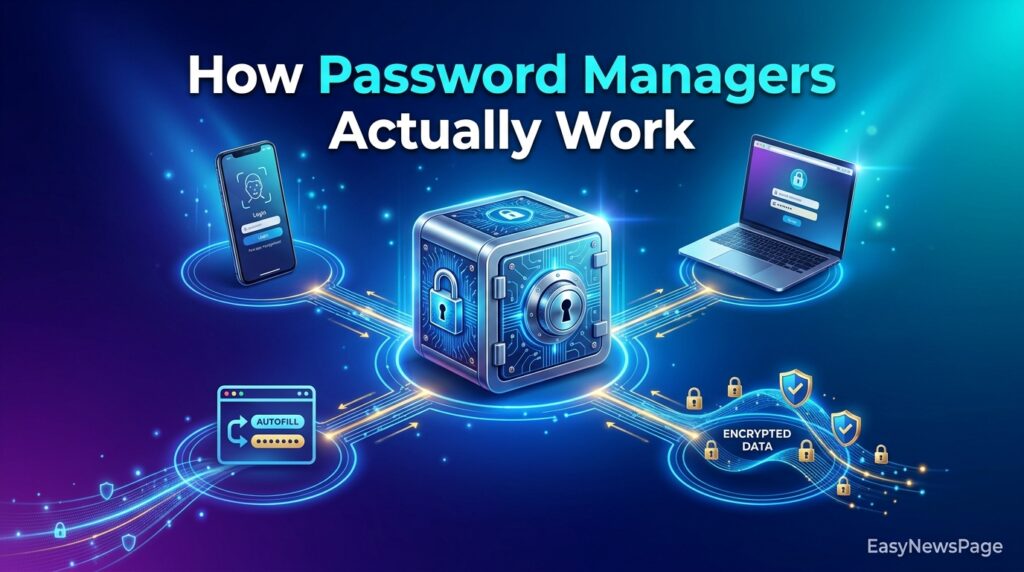
A password manager is software — usually a browser extension, desktop app, and mobile app working together — that creates, stores, and enters passwords on your behalf. Every password it generates is long, random, and unique to that one account, which means a breach on one site can’t be used to break into your other accounts.
All of this is protected by a single master password (often paired with biometric unlock, such as a fingerprint or face scan, on mobile devices). Most reputable providers use encryption with a zero-knowledge architecture, meaning your data is scrambled on your own device before it’s ever sent to the company’s servers — so even the provider itself cannot read your stored passwords.
Why It Matters: Core Benefits
- Stronger security by default. You stop reusing weak passwords because the software generates strong ones automatically.
- Faster logins. Autofill means you’re not typing (or forgetting) passwords manually.
- Breach alerts. Most managers scan for exposed credentials and warn you to change them.
- One place for everything. Secure notes, payment cards, and increasingly passkeys can live in the same encrypted vault.
- Cross-device access. Your vault syncs across your phone, laptop, and tablet.
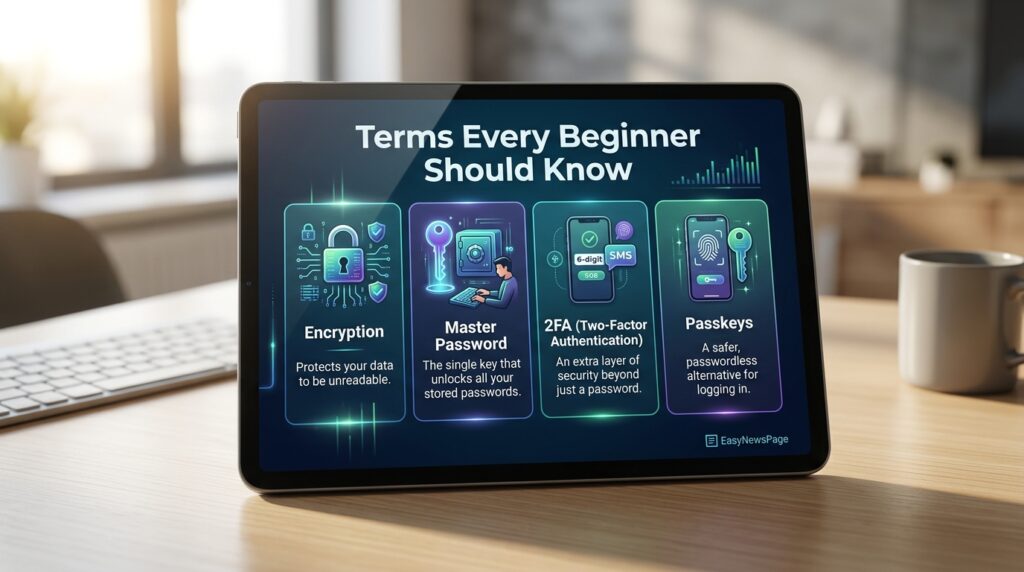
Key Terms Beginners Must Know
| Term | What It Means |
|---|---|
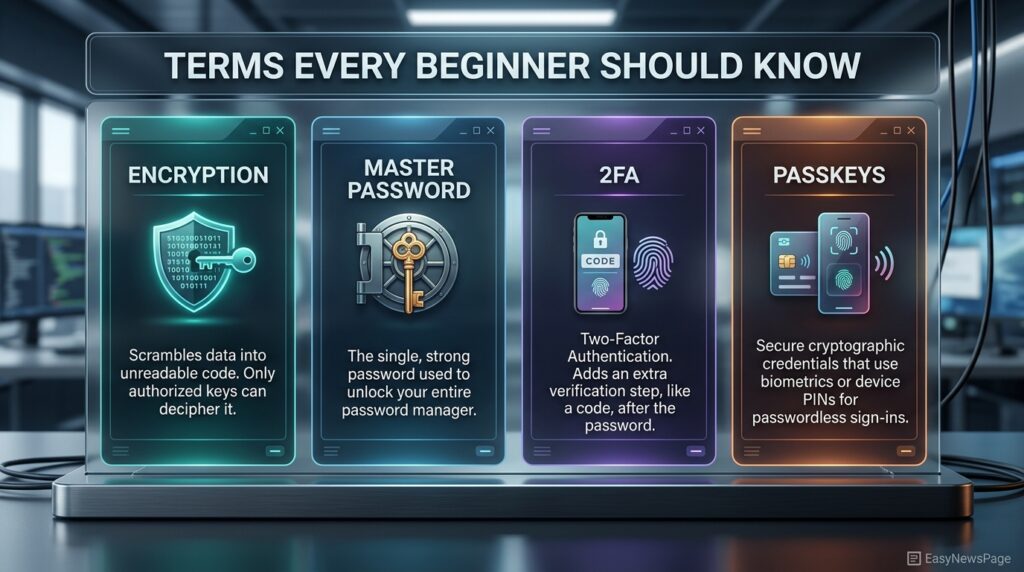
| Master Password | The single password that unlocks your entire vault — the only one you need to remember. |
| Encryption | The process of scrambling your data so it’s unreadable without the correct key. |
| Zero-Knowledge Architecture | A design where even the password manager company cannot see your stored data. |
| Autofill | The feature that automatically enters saved credentials into login fields. |
| Two-Factor Authentication (2FA) | An extra verification step (like a code from your phone) added on top of your password. |
| Passkeys | A newer, passwordless login method using a cryptographic key tied to your device is generally considered more phishing-resistant than typed passwords. |
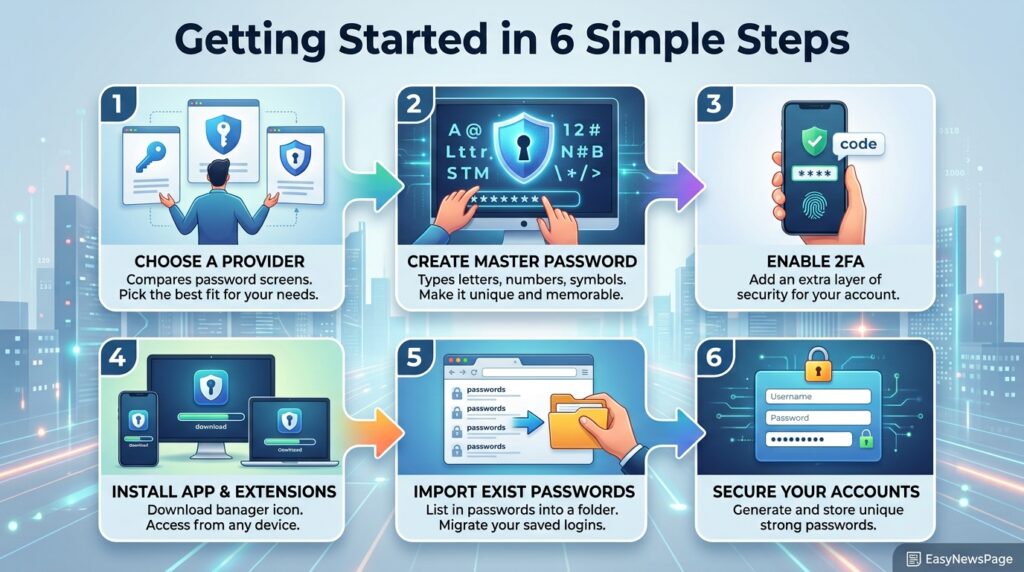
Step-by-Step: Getting Started
Step 1: Choose a Reputable Provider
Look for a provider with independently audited encryption, a clear zero-knowledge policy, and support across the devices you actually use.
Step 2: Create a Strong Master Password
Choose a long passphrase (four or more unrelated words work well) that you don’t use anywhere else — and don’t write it down where others can find it.
Step 3: Enable Two-Factor Authentication
Turn on 2FA on the password manager account itself. This is the single most important step, since your vault is only as secure as its own login.
Step 4: Install the Browser Extension and Mobile App
This is what enables autofill and cross-device syncing, so your passwords are available wherever you log in.
Step 5: Import or Add Your Existing Passwords
Most tools can import saved passwords from your browser. Go through them and replace weak or reused ones with generated alternatives as you go.
Step 6: Set Up Passkeys Where Offered
For accounts that support passkeys (email, banking, major platforms), set up a passkey in your password manager instead of entering a password when prompted.
Common Mistakes to Avoid
- Reusing your master password elsewhere. This defeats the entire purpose — it’s the one password that should be truly unique.
- Skipping 2FA on the vault itself. Without it, your master password is the only thing standing between an attacker and every account you own.
- Forgetting your master password with no recovery plan. Because of zero-knowledge encryption, most providers cannot reset it for you — set up an official recovery method (like an emergency kit or recovery code) the day you sign up.
- Storing the master password in a plain-text file or a note app. If that device is compromised, so is your entire vault.
- Ignoring breach alerts. A flagged password should be changed immediately, not “later.”
Recommended Tools & Resources
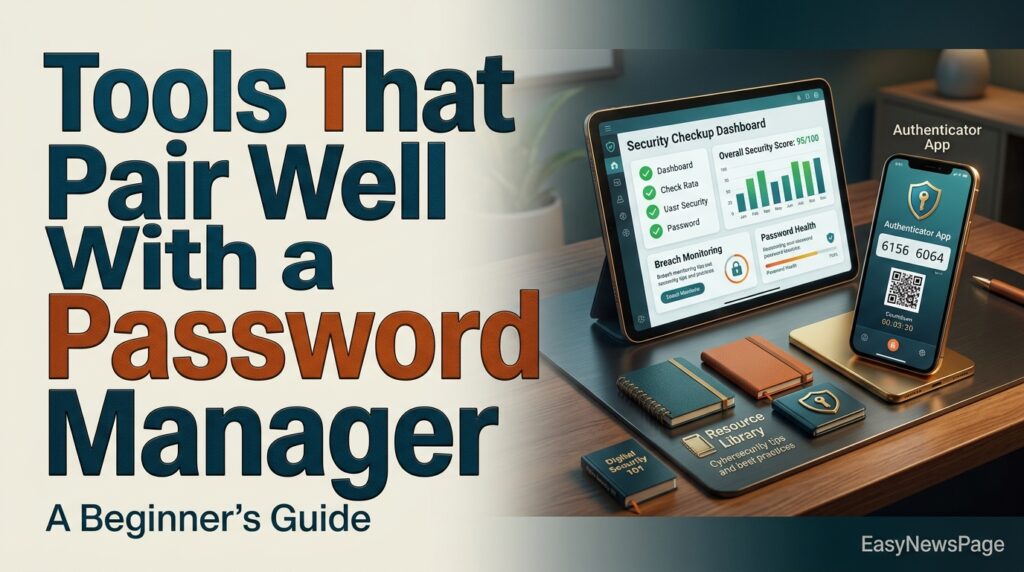
- Your password manager’s own security checkup or watchtower feature, which flags weak, reused, or breached passwords.
- Your device’s built-in 2FA authenticator (or a dedicated authenticator app) for the extra verification step.
- Official documentation from the FIDO Alliance for readers who want a deeper technical understanding of how passkeys work under the hood.
Read more: AI Job Automation: What’s Really Happening
Frequently Asked Questions
Is it actually safe to store all my passwords in one app?
Yes, when the provider uses zero-knowledge encryption, meaning your data is scrambled before it ever leaves your device. The real risk is a weak or reused master password, not the concept of centralized storage itself.
What happens if I forget my master password?
Most providers cannot recover it for you due to zero-knowledge encryption, which is why setting up an official recovery method or emergency kit immediately after signing up is essential.
Are password managers free?
Many offer a genuinely usable free tier with core generation, storage, and autofill features, while paid plans typically add family sharing, more device syncing, or advanced breach monitoring.
Do I still need a password manager once passkeys take over?
Yes, for now. Passkeys are rolling out gradually, so a password manager still handles the many sites that haven’t adopted them yet, and increasingly stores your passkeys too.
Conclusion
Getting started with a password manager takes less time than most people expect — usually under 20 minutes for the initial setup — and it closes one of the most common ways accounts are actually compromised: password reuse after a breach elsewhere. The single most actionable takeaway from this guide is this: don’t wait until you’ve been personally affected by a breach to make the switch.
Pick a reputable provider today, spend five minutes creating a genuinely unique master password, and turn on two-factor authentication for that account before you do anything else. Everything after that — importing old passwords, replacing weak ones, adding passkeys as sites support them — can happen gradually over the following weeks without disrupting how you use your accounts day to day.
As passwordless login continues rolling out across major platforms through 2026 and beyond, the password managers built today are already positioning themselves as the bridge between old and new authentication methods, so setting one up now means you won’t need to relearn your habits later.
The next step is simple and immediate: open your browser’s extension store right now, install a password manager, and create your master password before you close this tab. That one small action is the highest-leverage security decision most people can make this year.