


A password manager is supposed to be the single tool that finally makes your online accounts safe — one strong master password protecting everything else. But owning one doesn’t automatically make you secure. The way most people actually use their password manager quietly reintroduces the same risks the tool was meant to eliminate: weak master passwords, skipped multi-factor authentication, unsecured device syncing, and vaults nobody ever audits. This guide breaks down the specific mistakes that turn a password manager from a security asset into a false sense of safety.
This matters more now than ever. Credential-based attacks remain the leading cause of breaches, and password managers themselves have become higher-value targets precisely because they hold everything in one place. Getting the fundamentals right — a strong master password, mandatory multi-factor authentication (MFA), careful device hygiene, and regular vault audits — is what actually determines whether your password manager protects you or just organizes your vulnerabilities in one convenient location for an attacker.
This guide covers what a password manager actually does, how the underlying encryption and zero-knowledge architecture work, the specific setup and daily-use mistakes that undermine that protection, and how to audit your own habits against them. You’ll find a comparison of mistake severity, a decision matrix for choosing the right manager for your risk profile, a troubleshooting section for common vault issues, and a myths-vs-facts breakdown addressing outdated advice, such as frequent forced password rotation. There’s also a full FAQ answering the questions people actually type into Google before or after adopting one.
By the end, you’ll know exactly which habits to fix first, which ones matter less than people assume, and how to turn your password manager into the security layer it was designed to be rather than a single point of failure. The goal isn’t to scare you away from using one — password managers remain dramatically safer than the alternative — it’s to close the specific gaps that let a good tool fail in practice.
Quick Facts Table
| Fact | Detail |
|---|---|
| Most common root cause of breaches | Reused, weak, or stolen credentials |
| % of people who don’t use a unique password for every account | 83% (2026 survey) |
| % of exposed credentials found reused across accounts | 94% (analysis of 19B+ leaked credentials) |
| Most critical single fix | Strong, unique master password + mandatory MFA on the vault |
| Biggest device-level risk | Syncing an unsecured or malware-infected device |
| Recommended architecture | Zero-knowledge encryption (provider never sees your data) |
Quick Summary
The mistakes that put password manager users at risk rarely involve the software itself — they involve how it’s set up and used. Weak or reused master passwords, skipping MFA on the vault, syncing across unprotected devices, falling for phishing pages disguised as the manager’s login, and never auditing saved logins for reuse or exposure due to breaches are the five patterns responsible for most real-world compromises. Each is fully preventable, and none require advanced technical skill to fix — just a shift in a few specific habits.
Key Takeaways
- Your master password is the single point of failure protecting every other credential — treat it accordingly.
- MFA on the vault itself, not just individual accounts, is the highest-leverage fix available.
- Device security matters as much as the manager — a compromised phone or laptop can expose a synced vault regardless of encryption strength.
- Password managers with zero-knowledge architecture cannot see your data even if their servers are breached, but only if you set them up correctly.
- Passphrases outperform complex-but-short passwords — length matters more than symbol complexity for resistance to cracking.
- Regular vault audits catch reused or breach-exposed passwords before attackers do.
Table of Contents
Why Trust This Guide
This guide draws on published 2026 survey data from security researchers and vendors, cross-checked across multiple independent sources rather than a single vendor’s blog. Every statistic cited below is attributed to its original source, and figures that couldn’t be independently confirmed have been noted rather than presented as fact. The mistakes covered reflect documented, recurring failure patterns — not hypothetical worst-case scenarios.
Who This Guide Is For
This guide is for anyone already using, or considering, a password manager — from first-time adopters unsure how to set one up correctly to long-time users who’ve never audited their vault. It’s especially relevant if you’ve synced your manager across multiple devices, reused your master password anywhere else, or haven’t reviewed your saved logins in over a year.
Topic Verification
A password manager is software that generates, encrypts, and stores login credentials in a secure vault, unlocked by a single master password or biometric factor. The core promise is that you only need to remember one strong credential instead of dozens. <cite index=”15-1″>Password manager users are statistically less likely to experience identity or credential theft compared to non-users</cite>, but that protection depends entirely on correct setup and consistent habits.
What Is a Password Manager
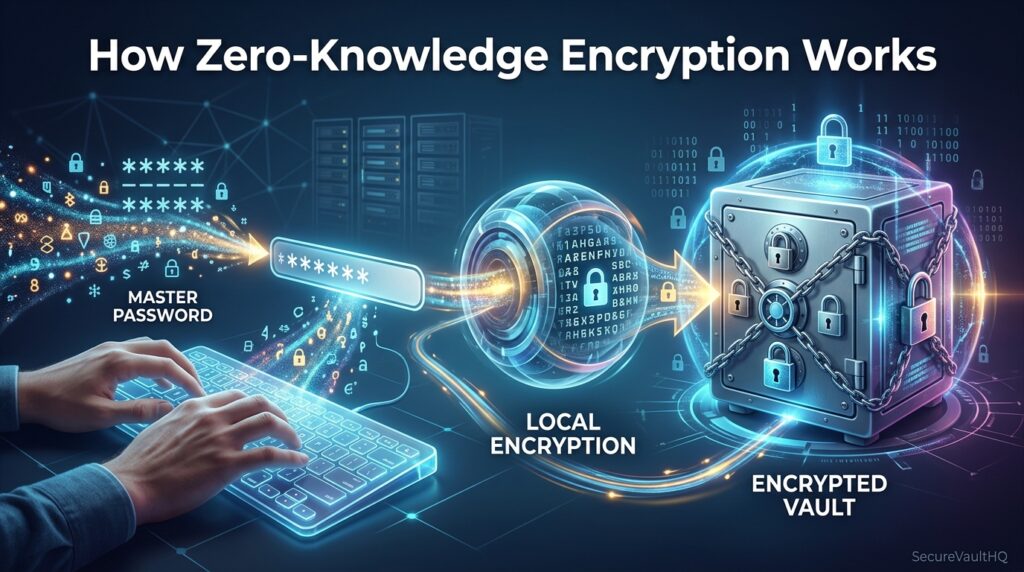
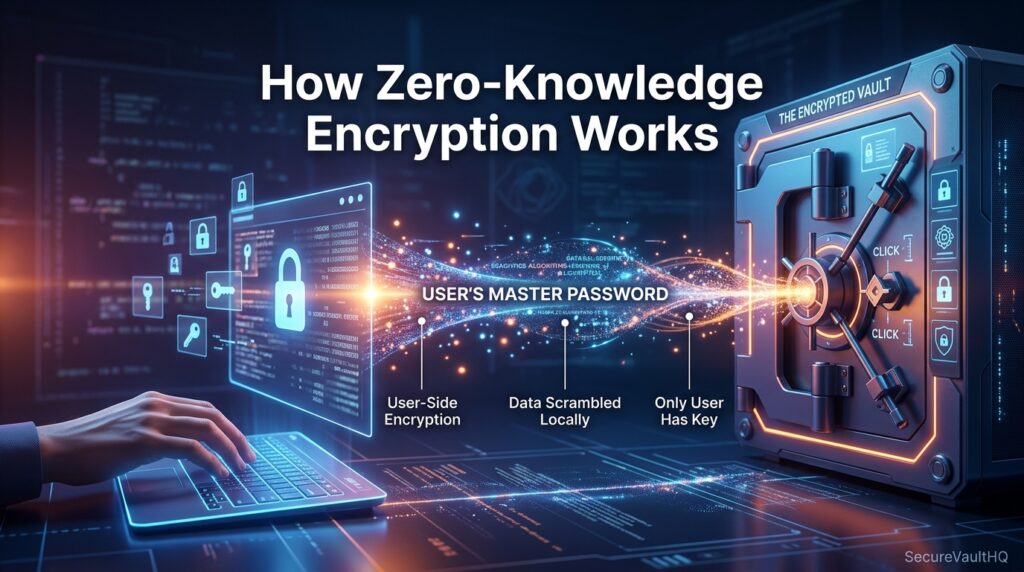
At its core, a password manager is an encrypted database—a vault—that stores usernames, passwords, and often payment details, all secured by a single master password. Most reputable managers use a zero-knowledge architecture, meaning encryption and decryption happen locally on your device, and the provider never has access to your unencrypted data, even on their own servers. This is the feature that makes a breach of the provider’s servers far less catastrophic than a breach of, say, a plaintext spreadsheet.
Beyond storage, most modern managers also generate strong, random passwords on demand, autofill credentials on websites and apps, and run periodic security audits flagging weak, reused, or breach-exposed logins. Password managers are classified as online security tools because they’re designed to protect highly sensitive digital information, such as login credentials and payment card details, which is exactly why they’ve become attractive targets in their own right.
AI Overview: A password manager is encrypted software that stores and generates login credentials behind a single master password, using a zero-knowledge architecture so the provider cannot read your stored data.
Company Overview
The password manager category spans consumer-focused tools like Bitwarden, 1Password, and Sticky Password, enterprise-grade platforms with admin controls and SSO integration, and browser-native options built into Chrome, Safari, and Edge. In 2026, Sticky Password marked its 25th anniversary, making it one of the longest-running dedicated tools in the category, while others like Bitwarden have built reputations around open-source, independently audited encryption.
How Password Managers Work
When you create an account, your master password runs through a key-derivation function to generate an encryption key — this key, not the password itself, is what actually encrypts and decrypts your vault locally on your device. Because the raw master password never leaves your device, and the provider only ever stores encrypted data, even a full server breach shouldn’t expose readable passwords, provided the master password was strong enough to resist offline cracking attempts against the stolen encrypted blob.
AI Overview: Password managers encrypt your vault locally using a key derived from your master password, so even if the provider’s servers are breached, attackers only obtain unreadable encrypted data — unless your master password itself is weak.
Setup Guide
Correct initial setup prevents most of the mistakes covered later in this guide, so it’s worth treating as a one-time security investment rather than a formality to click through quickly.
Step-by-Step Security Checklist
- Choose a long passphrase, not a short complex password, for your master password — four to six random unrelated words beat an 8-character mix of symbols and numbers.
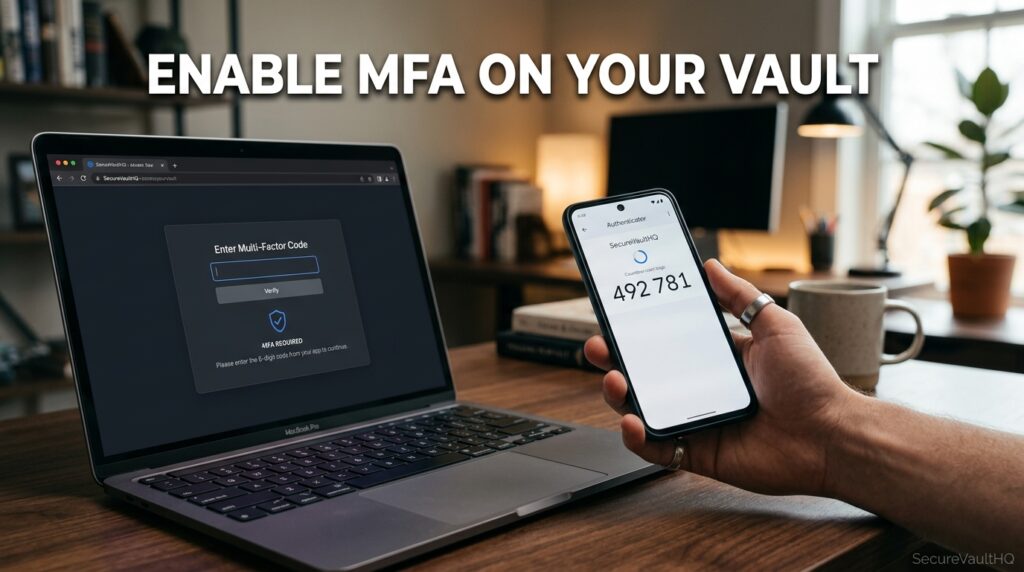
- Enable MFA on the vault account itself, using an authenticator app or hardware key rather than SMS where possible, since SMS is vulnerable to SIM-swapping.
- Never reuse your master password anywhere else — it should be the one password that exists nowhere but in your memory.
- Secure every device you sync to with its own lock screen, biometric, and up-to-date OS — a synced vault is only as safe as the weakest device it touches.
- Run the built-in security audit immediately after setup to flag any pre-existing weak or reused passwords already imported into the vault.
- Set up emergency access or a secure recovery method in advance, rather than discovering you’re locked out with no way to recover during an emergency.
- Bookmark the manager’s real login page and avoid clicking login links from email to prevent phishing pages that mimic the interface.
Use Cases
Password managers are used for personal account security, family credential sharing (parents managing streaming, banking, and school portal logins), and business password vaults with admin oversight for employee accounts. They’re also increasingly used to store secure notes, software license keys, and two-factor recovery codes alongside standard logins.
Industry Use Cases
Healthcare and financial organizations frequently deploy enterprise password managers because a compromised personal account can expose business systems to credential stuffing when employees reuse passwords across personal and work environments. IT teams in these sectors increasingly pair mandatory managers with MFA policies, since one company that mandated managers plus MFA post-breach saw credential attacks fall sharply as a direct result.
Benefits
The clearest benefit is eliminating password reuse—the single most exploited weakness in modern breaches, as an analysis of over 19 billion exposed credentials found that 94% were reused or duplicated across accounts. Password managers also remove the cognitive burden of memorizing dozens of unique logins, which is what drives most people toward weak, reused passwords in the first place.
Limitations
No password manager eliminates risk entirely — it concentrates it. If your master password is weak, or your MFA is skipped, an attacker who compromises the vault gains access to everything at once rather than one account at a time. Device vulnerabilities remain a real risk, since a manager synced to an infected or unlocked device can be exposed regardless of how strong the underlying encryption is.
Pros & Cons Table
| Pros | Cons |
|---|---|
| Eliminates password reuse across accounts | Concentrates risk into one master password |
| Generates strong, random passwords automatically | Requires disciplined device security to stay safe |
| Flags weak/breached passwords via audits | Vulnerable to phishing pages mimicking the login |
| Zero-knowledge architecture protects against server breaches | Useless without MFA enabled on the vault itself |
| Reduces cognitive load of memorizing logins | Recovery can be difficult if the master password is lost |
The Most Common Mistakes
1: A Weak or Reused Master Password
This is the foundational failure that undermines everything else. If your master password is short, guessable, or reused from another account, the encryption protecting your entire vault is only as strong as that one weak point. Your password manager is only as secure as its master password, which is why security practitioners consistently name this the first thing to fix.
2: Skipping MFA on the Vault Itself
Many users enable MFA on individual accounts like email or banking but skip it on the password manager itself — the one account that, if compromised, exposes all the others at once. Ensuring a strong, unique master password and immediately enabling MFA on the vault provide foundational protection that significantly mitigates the risk of direct compromise.
3: Syncing to Unsecured Devices
Syncing your vault to a phone without a lock screen, an outdated OS, or a shared family computer extends your attack surface well beyond the manager itself. If any synced device isn’t protected appropriately, you risk malware capturing vault data as it’s decrypted on that device.
4: Trusting Phishing Pages That Mimic the Login Screen
Attackers increasingly build convincing fake login pages for popular password managers, capturing master passwords directly when users click a link from a fraudulent email rather than navigating to the real site. Bookmarking the official login URL and never authenticating through an email link closes this gap almost entirely.
5: Never Auditing Saved Logins
Many users import old, weak, or reused passwords into their manager and never revisit them. Running a regular security checkup that detects weak, reused, or exposed logins meaningfully reduces the risk of unauthorized access, but only if that audit actually gets run rather than left untouched after setup.
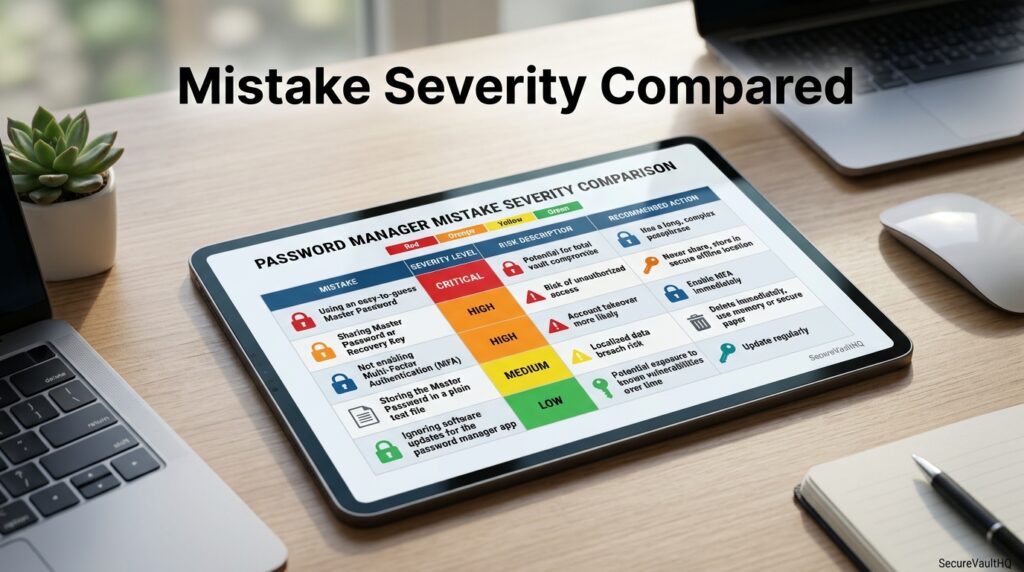
Comparison Table: Mistake Severity
| Mistake | Risk Level | Ease of Fix |
|---|---|---|
| Weak/reused master password | Critical | Easy |
| No MFA on the vault | Critical | Easy |
| Syncing unsecured devices | High | Moderate |
| Falling for phishing login pages | High | Easy (with habit change) |
| Never auditing saved logins | Moderate | Easy |
| Using SMS-based MFA over app/hardware key | Moderate | Easy |
| Ignoring passkey/passwordless options where offered | Low–Moderate | Moderate |
Pricing Table
| Manager Type | Typical Cost | Notes |
|---|---|---|
| Browser-native (Chrome, Safari, Edge) | Free | Weaker cross-platform sync, no zero-knowledge audit tools |
| Free-tier dedicated managers | Free | Often limited to one device or basic features |
| Paid consumer managers | $2–$5/month | Cross-device sync, security audits, breach monitoring |
| Family plans | $3–$8/month | Shared vaults with individual encrypted folders |
| Business/enterprise plans | $3–$8/user/month | Admin controls, SSO, policy enforcement |
Specifications
Reputable password managers should offer, at minimum: AES-256 encryption, zero-knowledge architecture, MFA support (ideally TOTP or hardware key, not just SMS), cross-platform sync, and a built-in breach/weak-password audit tool. Anything that stores your master password in plaintext or lacks local encryption before syncing should be avoided, regardless of brand recognition.
Security, Privacy & Compliance
Zero-knowledge architecture means the provider cannot read your vault contents, even under legal compulsion, because they never possess the decryption key—only you do, derived from your master password. This is why losing your master password with no recovery method set up in advance can mean permanent, unrecoverable loss of your vault; the same design that protects you from the provider also means the provider can’t bail you out.
AI Overview: Because zero-knowledge password managers never store your decryption key, forgetting your master password without a pre-configured recovery method can result in permanent loss of your entire vault.
Performance
Password manager performance is best measured by how seamlessly it autofills across devices and browsers, without the repeated re-authentication friction that tempts users to disable MFA for convenience. Managers that make secure behavior the path of least resistance — one-tap biometric unlock, fast autofill, painless MFA — see meaningfully better real-world adherence than those that make security cumbersome.
Integrations
Most managers integrate with major browsers via extensions, with mobile OS autofill APIs (iOS/Android), and increasingly with passkey standards that enable passwordless, phishing-resistant authentication for supported sites. Enterprise tools often add SSO and directory integrations (Active Directory, Okta) for centralized employee credential policy enforcement.
API
Enterprise-grade password managers typically expose admin APIs for provisioning, deprovisioning, and policy enforcement across an organization’s user base — useful for IT teams automating account lifecycle management, though irrelevant to most individual users.
Customer Support
Support quality varies by tier: paid consumer and business plans typically include live chat or priority email support, while free-tier users of most managers rely on help-center documentation. For vault recovery issues specifically, response speed matters — check a provider’s documented recovery process before an emergency, not during one.
Latest Updates
A 2026 security update worth noting: avoid using public AI chatbots to generate passwords; researchers found that popular AI tools often produce passwords with predictable structures rather than true cryptographic randomness, making them easier to crack than they appear, despite looking complex. Password managers’ own built-in generators remain the safer choice, since they use proper cryptographic randomness rather than language-model pattern prediction.
Expert Tips
Use a passphrase of four to six random, unrelated words for your master password rather than a shorter string of symbols —short complex passwords crack faster than long simple ones, despite the common assumption that complexity always beats length. Enable MFA on the vault before adding any passwords to it, not after. Where a site offers passkeys, adopt them—they’re phishing-resistant by design because there’s no shared secret for an attacker to steal.
Common Mistakes (Additional Patterns)
Beyond the five core mistakes already detailed, users frequently disable auto-lock timers for convenience, leaving a vault unlocked on a shared or unattended device. Others store the master password itself in an unencrypted note, email draft, or sticky note, quietly recreating the exact vulnerability the manager was meant to eliminate.
Troubleshooting
If you’re locked out of your vault, check whether a pre-configured recovery key or emergency contact was set up during initial setup—this is the only reliable way back in with zero-knowledge architecture. If autofill stops working after a browser update, reinstalling the extension typically resolves permission conflicts before assuming a deeper account issue. If you suspect a phishing page captured your master password, change it immediately in the official app (not via a browser link) and review your vault’s login history for any unrecognized access.
Myths vs Facts
Myth: Changing your passwords every 30–90 days improves security. Fact: Forced frequent rotation is a myth — it typically pushes users toward slightly modified, easier-to-guess variants of previous passwords rather than genuinely stronger ones; unique, long passwords changed only when compromised are more effective.
Myth: A longer password needs lots of symbols and numbers to be secure. Fact: Length matters more than symbol complexity for resisting brute-force cracking — a long passphrase of unrelated words is typically both stronger and easier to remember.
Myth: Password managers are riskier than not using one at all, since they store everything in one place. Fact: Not using a password manager is significantly more dangerous, since it drives the reuse and weak-password habits responsible for most real-world breaches.
Decision Matrix
| Criteria | Free/Browser-Native | Paid Consumer Manager | Business/Enterprise |
|---|---|---|---|
| Ease of Setup | 5/5 | 4/5 | 3/5 |
| Cross-Device Sync | 3/5 | 5/5 | 5/5 |
| Security Audit Tools | 2/5 | 5/5 | 5/5 |
| MFA/Hardware Key Support | 3/5 | 5/5 | 5/5 |
| Admin/Policy Controls | 1/5 | 2/5 | 5/5 |
| Cost | 5/5 | 3/5 | 2/5 |
Beginner vs Advanced
Beginners should prioritize getting the fundamentals right over choosing the “perfect” manager: a strong passphrase master password, MFA enabled immediately, and a completed initial security audit matter far more than which specific brand is chosen. Advanced users should focus on passkey adoption where supported, hardware security key MFA, and periodic re-audits, since the marginal security gains at that level come from closing edge-case gaps rather than fixing fundamentals.
Best Alternatives
For users not ready to commit to a full password manager, built-in OS keychains (Apple Keychain, Google Password Manager) offer a meaningfully better baseline than no tool at all, though with weaker cross-platform flexibility and audit features. Hardware security keys (like YubiKey), when paired with a manager, add a phishing-resistant layer beyond software-based MFA alone.
Alternative Comparison
| Alternative | Best For | Trade-off |
|---|---|---|
| OS-native keychain (Apple/Google) | Casual users wanting a free baseline | Weaker cross-platform sync and audit tools |
| Dedicated password manager | Most users, any risk level | Requires initial setup discipline |
| Hardware security key + manager | High-risk users (journalists, executives) | Added cost and device to carry |
| Passkeys (where supported) | Phishing-resistant login | Not yet universally supported across sites |
Who Should Use It
Anyone managing more than a handful of online accounts should be using a dedicated password manager — which, in 2026, is effectively everyone. It’s especially critical for people reusing passwords across financial, email, and work accounts, since 83% of Americans still don’t use a unique password for every account, the exact pattern that turns one breach into many.
Who Should Avoid It
There’s no legitimate reason to avoid password managers altogether, but users should avoid free or unaudited tools that lack a published encryption standard, since a manager without a zero-knowledge architecture and transparent security practices can introduce more risk than it removes.
Read more: How Password Managers Protect You Online in 2026
FAQ
What is the most common mistake people make with password managers?
The most common and highest-risk mistake is using a weak or reused master password, since it undermines the encryption protecting every other credential stored in the vault.
Is it safe to sync a password manager across multiple devices?
Yes, as long as every synced device has its own lock screen, up-to-date software, and malware protection — the vault’s encryption doesn’t help if an attacker gains direct access to an unlocked, infected device.
Should I enable two-factor authentication on my password manager?
Yes, enabling MFA on the vault itself—ideally via an authenticator app or hardware key rather than SMS—is one of the highest-impact security steps a user can take.
Do I need to change my passwords every few months?
No, routine forced password rotation is now considered outdated advice; long, unique passwords changed only when there’s evidence of a breach are more effective than frequent, minor changes.
Are password managers safer than writing passwords down?
Yes — a reputable password manager with zero-knowledge encryption is significantly safer than a physical note or spreadsheet, both of which offer no protection if lost, photographed, or accessed by someone else.
What happens if I forget my master password?
Recovery depends on whether you set up an emergency access method or recovery key in advance; with true zero-knowledge architecture, the provider cannot recover a forgotten master password for you.
Rating Scorecard
| Category | Score (out of 5) |
|---|---|
| Ease of Adoption | 4.3 |
| Security When Set Up Correctly | 4.8 |
| Risk if Mistakes Are Made | 2.0 |
| Recovery Options | 3.9 |
| Overall Value | 4.5 |
Conclusion
The mistakes covered in this guide share a common thread: they’re not flaws in password manager technology; they’re gaps in how people set up and use it day to day. A weak master password, skipped MFA, an unsecured synced device, a convincing phishing page, or a vault nobody ever audits — each one quietly undoes the protection the tool was designed to provide, turning a single point of convenience into a single point of failure.
The encouraging news is that each of these fixes is simple and largely a one-time effort. A long passphrase instead of a short complex string, MFA enabled before a single password is added, secured devices on every synced endpoint, a bookmarked login page instead of email links, and a periodic security audit — none of this requires technical expertise, just a deliberate first hour of setup and a recurring five minutes of maintenance.
The overall verdict is this: password managers remain dramatically safer than the alternative of memorized, reused passwords, and the risks associated with them are almost entirely self-inflicted rather than inherent to the tool. Fix the master password, turn on MFA, secure your devices, and audit your vault regularly — get those four habits right, and a password manager does exactly what it promises: it turns dozens of vulnerabilities into one well-protected point of control.
Official Sources
- Cybernews password manager security research and analysis (cybernews.com)
- PasswordManager.com 2026 U.S. password habits survey (passwordmanager.com)
- Have I Been Pwned breach monitoring reference (haveibeenpwned.com)
- Sticky Password official blog and security research (stickypassword.com)
- mSecure official blog (msecure.com)
Note (Official-Source Verification): Statistics on password reuse (83%, 94%), predictable pattern usage, and AI-generated password weaknesses are drawn from named 2026 surveys and vendor research cited above. Figures should be verified against the original survey or report before republishing, as this guide summarizes rather than reproduces the underlying data.
Author Bio
Written by a cybersecurity content researcher specializing in consumer digital security, drawing on published 2026 survey data and independent security research rather than a single vendor’s marketing material.