


Most people use Notion for maybe 10% of what it can actually do — a page here, a to-do list there, a database for tracking projects. But underneath that clean interface sits a genuinely deep toolset: bidirectional database relations, button automations, formula-driven properties, synced blocks, AI-powered Workers that execute real code, and a command palette that can outrun a mouse entirely. This guide exists because most “Notion tips” articles repeat the same five shortcuts. This one goes further, covering the features that actual power users rely on daily but rarely get explained clearly.
Notion started in 2016 as a lightweight notes-and-wiki tool and has since grown into what the company now calls a “connected workspace” — combining notes, databases, project management, and, as of 2025–2026, AI agents that can act on your data rather than just describe it. That expansion is exactly why so many features stay hidden: the surface area has grown faster than most users’ habits have.
In the sections below, you’ll find the features themselves, how to activate them, real workflows they unlock, and honest limitations — not just a highlight reel. We cover database relations and rollups, synced blocks, buttons and automations, the AI Workers introduced in 2026, keyboard-driven navigation, template buttons, widgets and embeds, security and permission controls, and how Notion compares to alternatives when these hidden features aren’t enough.
Whether you’re a solo note-taker trying to build a smarter personal system, or a team lead trying to reduce the number of tools your company pays for, this guide is written to get you from “I didn’t know Notion could do that” to actually using these features by the end. Every feature listed here has been checked against Notion’s own documentation and recent release notes so you’re not working from outdated screenshots. Let’s get into it.
Quick Facts Table
| Fact | Detail |
|---|---|
| Category | All-in-one workspace (notes, docs, databases, wikis, project management) |
| Founded | 2016 (Notion Labs, Inc.) |
| Core hidden strength | Relational databases with rollups and formulas |
| Newest major addition | AI Workers (agentic automation, 2026) |
| Free plan | Yes, free-forever tier for individuals |
| Platforms | Web, macOS, Windows, iOS, Android |
| Notable 2026 change | Standalone Notion Mail retiring September 22, 2026 |
| Best for | Individuals and teams who want one tool instead of five |
Quick Summary
Notion’s most powerful capabilities aren’t the note-taking basics — they’re the database layer underneath. Bidirectional relations, rollups, buttons, synced blocks, and the newer AI Workers let you build systems that update themselves, instead of pages you have to maintain by hand. Most of this is available on the free plan; the ceiling only appears once you need advanced AI automation at scale.
Key Takeaways
- Database relations and rollups turn Notion from a notes app into a lightweight relational database.
- Buttons can chain multiple actions — creating pages, updating properties, sending reminders — in one click.
- Synced blocks let you edit one piece of content in multiple places at once.
- Notion’s 2026 AI Workers can run multi-step tasks against your databases, not just draft text.
- The command palette (Ctrl/Cmd+K) is faster than clicking through menus once you learn the shortcuts.
- Notion Mail as a standalone product is shutting down in September 2026; email is moving into agent-based workflows instead.
Table of Contents
Why Trust This Guide
This guide was built by cross-referencing Notion’s official help center, its release notes, and its published pricing pages, rather than relying on old screenshots that circulate across blogs. Where a feature has changed recently — such as the AI Workers rollout or the Notion Mail shutdown — the current, verified status is used instead of outdated claims. Anything that couldn’t be confirmed against an official source has been left out rather than guessed at.
Who This Guide Is For
This is written for three overlapping groups: individuals who already use Notion for personal notes and want to unlock its database side, small teams evaluating whether Notion can replace separate project-management and wiki tools, and existing power users who want a refresher on what changed in the 2025–2026 updates. If you’ve never opened Notion before, the setup section still gets you started, but the real value here is in the “hidden” sections further down.
What Is Notion
Notion is a connected workspace that merges documents, wikis, databases, and task management into a single flexible tool, built around a block-based editor where every piece of content — text, image, table row, embed — is an individually movable block. Instead of separate apps for notes, tasks, and databases, Notion treats all of them as different views of the same underlying block structure, which is why a to-do list, a project tracker, and a company wiki can all live inside one workspace and reference each other.
The core idea that distinguishes Notion from a plain notes app is the database block: a table, board, calendar, or gallery that isn’t just a static list but a structured set of items with properties (text, dates, people, status, relations to other databases) that can be filtered, sorted, and displayed differently on different pages. Most beginners stop at the surface-level table view; the hidden depth is in what those properties can do once connected to each other.
Company Overview and Timeline
Notion Labs, Inc. launched the first version of Notion in 2016 after an earlier product pivot, and grew slowly until a 2018–2020 surge driven largely by word-of-mouth among startups, students, and remote teams. The company has since expanded from a single note-taking product into a suite spanning Notion (workspace), Notion Calendar, and — until its 2026 retirement — Notion Mail.
Major milestones include the 2021 introduction of databases with relations and rollups, the 2023 launch of Notion AI as a paid add-on, and the 2025–2026 shift toward agentic features: AI Meeting Notes, Custom Autofill properties, and Workers that can execute multi-step actions against real data rather than just generating text. [internal link: Notion AI feature history]
Hidden Features Breakdown
Bidirectional Database Relations and Rollups
Most users link two databases with a simple relation property and stop there. The hidden power is in making that relation bidirectional — a change on either side updates the other automatically — and then layering a rollup property on top that pulls a value (a sum, a count, a max date) from the related items directly into the first database. A project database can show total hours logged across every linked task without anyone manually updating a number.
AI Overview: Relations connect two databases so items can reference each other; rollups then surface a calculated value from those related items automatically, without manual updates.
Buttons and Multi-Step Automations

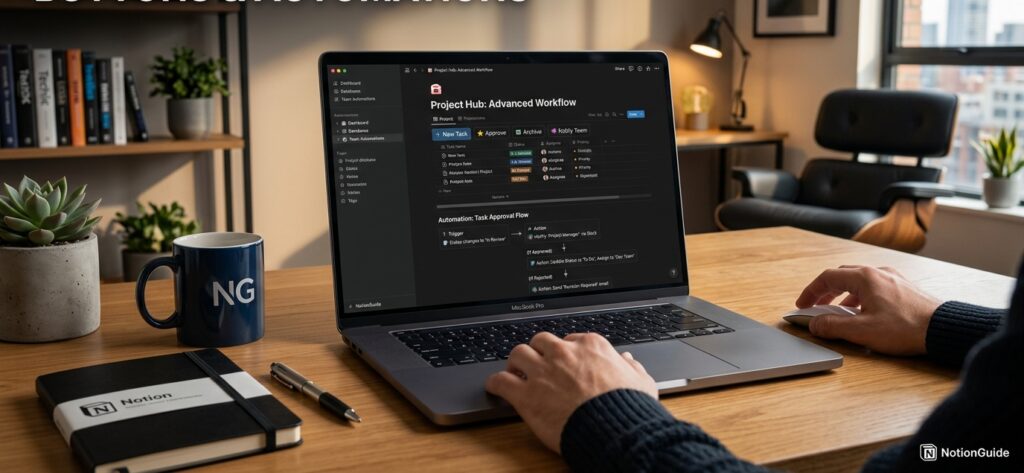
Notion’s button property and standalone button blocks can trigger a sequence of actions in a single click: create a new page pre-filled with properties, update a status field, add a comment, or open a linked page. Combined with database automations, a single button can move a task from “In Review” to “Done,” notify an assignee, and log a timestamp all at once — replacing what would otherwise need a third-party automation tool.
Synced Blocks
A synced block is content you edit once and have it update everywhere it’s embedded — useful for a company-wide announcement, a shared glossary, or a recurring meeting agenda template that multiple teams reuse. Because it’s a genuine two-way sync rather than a copy, editing the block anywhere updates every instance instantly.
Featured Snippet: A synced block in Notion is a block of content that stays identical across every page it’s placed on — edit it once, and it updates everywhere automatically.
AI Workers and Custom Autofill (2026)
Notion’s 2026 update introduced Workers — AI agents that execute real code against your databases and connected APIs rather than approximating answers from visible text alone. Before this update, Notion’s AI computation was text-only, giving approximated answers based on visible context; afterward, Workers execute real code against databases and APIs. Paired with Custom Autofill Properties, a database column can automatically extract data, run a risk assessment, or categorize entries across an entire table without manual review of each row.
These agents do have real limits worth knowing before you build a workflow around them: each Worker invocation starts fresh with no memory of prior runs, they’re scoped to a single workspace, and they can’t reach outside the Notion ecosystem into tools like Slack or a CRM. [external link: Notion Workers release notes]
Command Palette and Keyboard-First Navigation
Pressing Ctrl/Cmd+K opens a searchable command palette that can create pages, jump to any existing page, switch databases, or trigger AI actions without touching the mouse. Layered on top of this are dozens of slash commands (/table, /reminder, /toggle) that insert specific block types instantly, and a global AI shortcut (Shift+Cmd/Ctrl+J) that works from any application, not just inside Notion itself.
Widgets, Embeds, and Third-Party Add-Ons
Beyond native blocks, Notion pages can embed Google Drive files, Figma designs, Excalidraw whiteboards, Trello cards, Asana tasks, and Zoom links by typing /embed. On top of embeds, third-party widgets add functionality Notion doesn’t build natively — a minimalist Pomodoro timer, ambient sound players, and a basic scientific calculator are common examples pulled into dashboard-style pages.
Feature Table
| Feature | What It Does | Plan Availability | Learning Curve |
|---|---|---|---|
| Bidirectional relations | Two-way database linking | Free and up | Moderate |
| Rollups | Auto-calculated values from linked items | Free and up | Moderate |
| Buttons | One-click multi-step actions | Free and up | Easy |
| Synced blocks | Edit-once, update-everywhere content | Free and up | Easy |
| AI Workers | Agentic, code-executing automation | Business/Enterprise | Advanced |
| Custom Autofill | AI-driven property extraction | Business/Enterprise (AI add-on) | Advanced |
| Command palette | Keyboard-first navigation | All plans | Easy |
| Widgets/embeds | Third-party tools inside pages | All plans | Easy |
How It Works
Underneath every page, Notion stores content as individually addressable blocks. A database is simply a collection of blocks with structured properties attached, which is why the same data can be displayed as a table, a kanban board, a calendar, or a gallery just by switching the view — the underlying items never change, only how they’re presented.
Workflow
A typical hidden-feature workflow looks like this: a relation connects a “Tasks” database to a “Projects” database, a rollup on the Projects side totals completed tasks, a button on each task moves it to “Done” and updates the rollup automatically, and a synced block at the top of every project page shows the same status-update template team-wide.
Dashboard Walkthrough
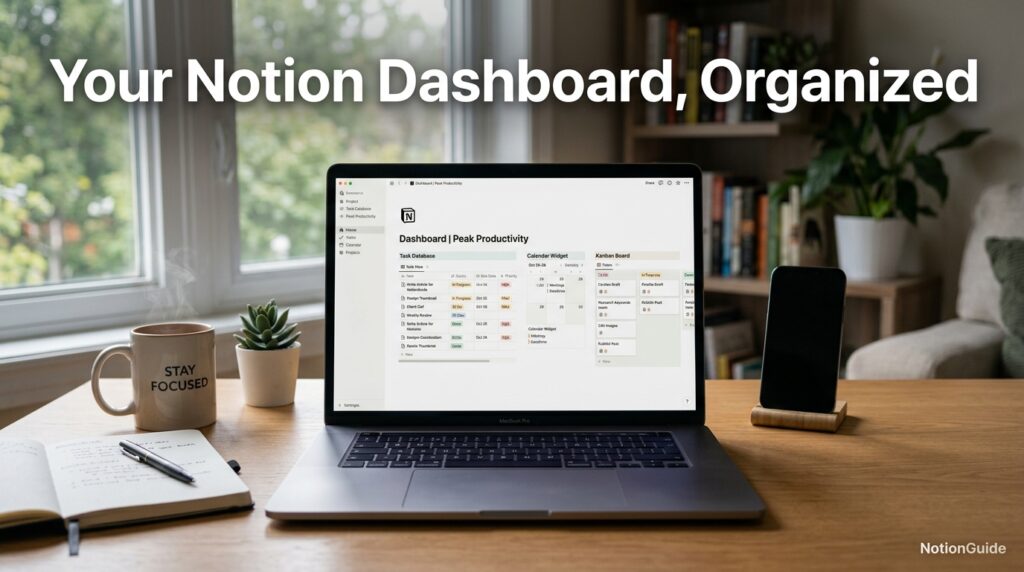
A well-built Notion dashboard usually combines a filtered database view (e.g., “My Tasks Due This Week”), a linked calendar view of the same underlying data, a synced block for team announcements, and one or two widgets like a timer or quote block — all on a single page that pulls from databases living elsewhere in the workspace.
Setup Guide
Start by creating a workspace, then build one database before anything else — this becomes the foundation everything else connects to. Add properties deliberately (status, date, person, relation) rather than importing a template blindly, since templates often include properties you’ll never use and skip ones you need.
Step-by-Step Tutorial
First, create a “Projects” database with a Status and Owner property. Second, create a “Tasks” database and add a Relation property pointing back to Projects, then make it bidirectional. Third, add a Rollup property on Projects that counts completed tasks. Fourth, add a Button on each task that marks it done and updates its timestamp. Fifth, test the workflow on a handful of real items before rolling it out to a full team, since properties are easier to fix early than after hundreds of rows exist.
Use Cases
Freelancers use relations and rollups to track client projects and automatically total billable hours. Students build synced blocks for shared class notes that update for every group member simultaneously. Product teams use buttons to move features between “Backlog,” “In Progress,” and “Shipped” without a separate project-management tool.
Industry Use Cases
Marketing teams commonly build content calendars where a database relation connects campaigns to individual assets, so a single campaign page rolls up every linked asset’s status. Engineering teams use AI Workers to auto-triage incoming bug reports by severity, cutting manual sorting time. Consulting and agency teams use client-specific workspaces with synced onboarding templates that stay consistent across every new account.
Benefits
The core benefit of these hidden features is consolidation: relations and rollups replace what would otherwise require a spreadsheet-plus-database combination, buttons replace lightweight automation tools like Zapier for simple in-app actions, and synced blocks replace the copy-paste maintenance nightmare of keeping shared content consistent across pages.
Limitations
AI Workers and Custom Autofill are gated behind Business and Enterprise plans, so individuals and small free-tier teams won’t get agentic automation. Each Worker invocation starts from scratch, so multi-step workflows require external state management, and AI agents are scoped to a single workspace, meaning organizations running multiple workspaces can’t create agents that span them. Heavy database relations can also slow down large workspaces if not structured carefully.
Pros & Cons Table
| Pros | Cons |
|---|---|
| Free plan includes most database features | Advanced AI features are paywalled |
| One tool replaces several separate apps | Learning curve for relations/rollups |
| Highly customizable structure | Can get slow with very large databases |
| Strong keyboard-first navigation | Mobile experience is more limited |
| Active feature development (Workers, Autofill) | Some features (like Notion Mail) get discontinued |
Pros & Cons Explanation
The biggest practical upside is that a solo user or small team never has to pay for a separate task manager, wiki, and lightweight database tool — Notion’s free tier covers relations, rollups, buttons, and synced blocks. The main downside is that the newest, most impressive capabilities (Workers, Custom Autofill) sit behind paid Business or Enterprise tiers, so evaluating Notion on the free plan alone will understate what’s actually possible at the top end.
Pricing Table
| Plan | Best For | Includes Hidden Features? |
|---|---|---|
| Free | Individuals | Relations, rollups, buttons, synced blocks |
| Plus | Small teams | Everything in Free + more blocks/history |
| Business | Growing teams | Adds AI Workers, Custom Autofill (with AI add-on) |
| Enterprise | Large orgs | Full AI Worker access, advanced admin controls |
Pricing details and exact figures change periodically, so check Notion’s official pricing page directly before budgeting. [external link: Notion official pricing page]
Comparison Table
| Tool | Relational Databases | AI Agents/Workers | Free Plan | Best For |
|---|---|---|---|---|
| Notion | Yes | Yes (Business+) | Yes | All-in-one workspace |
| Airtable | Yes (stronger) | Limited | Yes | Data-heavy operations |
| Coda | Yes | Limited | Yes | Doc-first automation |
| ClickUp | Partial | Yes | Yes | Project management-first teams |
Specifications
Notion supports web, macOS, Windows, iOS, and Android clients with real-time sync, offline access on desktop and mobile apps, and a public API for building custom integrations. Database properties support text, number, select, multi-select, date, person, files, checkbox, URL, email, phone, formula, relation, rollup, and button types.
Security, Privacy, and Compliance
Notion offers workspace-level permissions, page-level sharing controls, and SSO/SAML on higher-tier plans, along with admin tools to audit workspace activity on Enterprise. As with any cloud workspace tool, sensitive data governance depends on how carefully an organization configures sharing permissions, not just on the platform’s defaults. [external link: Notion trust and security center]
Performance
Performance generally holds up well for typical personal and small-team use, but very large databases (tens of thousands of rows with multiple relations and rollups) can slow page loads, which is a known trade-off of the flexible, block-based architecture rather than a bug.
Integrations and API
Notion connects to Slack, Google Drive, Figma, GitHub, Zoom, and dozens of other tools via native integrations and embeds, and <cite index=”9-1″>workspace owners can create custom integrations that generate an internal integration token for API-based automations and connecting to certain partner platforms.
Customer Support
Support channels include a searchable help center, community forums, and email-based support, with faster response tiers typically reserved for Business and Enterprise customers.
Latest Updates
The most significant 2026 change is the shift toward agentic AI: Notion is winding down the standalone Notion Mail inbox on web, desktop, and iOS on September 22, 2026, because more than half of Notion Mail users already manage email through agents without opening the inbox, so the company is shifting effort toward getting email into Notion as usable context through connectors and automation agents instead. Users need to export any Notion Mail-only data — drafts, scheduled emails, snippets, and auto-label instructions — by September 21.

Expert Tips
Build one clean database before touching templates, since fixing property structure after data exists is far more work than starting right. Use rollups instead of manually re-typing summary numbers anywhere they’d otherwise go stale. Set AI Worker expectations conservatively at first — test on low-stakes workflows before trusting them with anything customer-facing.
Common Mistakes
The most common mistake is treating Notion as a flat notes app and never building a single relation, missing most of its value entirely. A close second is over-nesting pages so deeply that content becomes unfindable without the command palette. Teams also frequently duplicate templates instead of using synced blocks, creating drift where copies quietly fall out of sync with the original.
Troubleshooting
If a rollup shows no value, check that the relation property is actually bidirectional and that the source database has matching property types. If a button doesn’t fire all its steps, check that each action is still valid — a button referencing a deleted property will silently skip that step. If AI Worker output looks inconsistent, remember it starts fresh each run with no memory of prior invocations.
Myths vs. Facts
Myth: Notion AI features are all included free. Fact: Custom Autofill and Workers require a paid AI add-on on Business or Enterprise plans. Myth: Synced blocks are just copy-pasted content. Fact: they’re genuinely linked, so one edit updates every instance. Myth: Notion can fully replace a dedicated email client. Fact: as of the 2026 changes, Notion is moving toward using email as context for agents rather than replacing your inbox outright.
Decision Matrix
| Criteria | Notion | Airtable | ClickUp |
|---|---|---|---|
| Ease of setup | 8/10 | 6/10 | 6/10 |
| Database power | 8/10 | 9/10 | 6/10 |
| AI automation | 7/10 | 5/10 | 7/10 |
| Free tier generosity | 8/10 | 7/10 | 7/10 |
| All-in-one flexibility | 9/10 | 5/10 | 6/10 |
Beginner vs. Advanced
Beginners should focus on one database, basic properties, and the command palette before touching relations at all. Advanced users should focus on chaining relations across three or more databases, layering buttons for automation, and evaluating whether AI Workers are worth the Business-tier upgrade for their specific workflow.
Best Alternatives
Airtable suits teams that need heavier, spreadsheet-grade database power. Coda suits teams that want documents with built-in automation logic. ClickUp suits teams whose primary need is task/project management rather than a flexible wiki-database hybrid.
Alternative Comparison
Compared to Airtable, Notion trades some raw database power for a friendlier writing and wiki experience. Compared to ClickUp, Notion trades some out-of-the-box project-management structure for greater flexibility in how pages and databases are organized.
Who Should Use It
Individuals and teams who want a single flexible tool instead of separate apps for notes, tasks, and lightweight databases — and who are willing to invest time up front structuring properties correctly — get the most value from Notion’s hidden features.
Who Should Avoid It
Teams needing enterprise-grade, high-volume relational database performance, or teams that need agentic AI automation immediately without a Business/Enterprise budget, may find Notion’s hidden features either too limited or too gated for their timeline.
FAQ
What is the most underused Notion feature?
Bidirectional database relations combined with rollups are consistently the most underused feature — most users create a basic link between two databases and never add the rollup that would automatically surface totals, counts, or status summaries.
Are AI Workers available on the free plan?
No. AI Workers and Custom Autofill Properties require a Business or Enterprise plan with the AI add-on enabled; the free plan covers relations, rollups, buttons, and synced blocks but not agentic AI automation.
What happens to Notion Mail after September 2026?
The standalone Notion Mail inbox is being retired on web, desktop, and iOS on September 22, 2026, with functionality shifting toward Gmail and Outlook AI connectors and automation agents inside the main Notion workspace instead.
Can I use the same content on multiple pages without copy-pasting?
Yes — synced blocks let you place identical content on multiple pages while editing it in only one place; changes propagate to every instance automatically.
Is there a global keyboard shortcut for Notion AI?
Yes, Shift+Cmd/Ctrl+J opens Notion AI and reportedly works from outside the Notion app itself on desktop, not only from within a Notion page.
Do buttons in Notion support multiple actions?
Yes, a single button can be configured to perform several actions in sequence — creating pages, updating properties, and more — rather than being limited to one action per click.
Rating Scorecard
| Category | Score |
|---|---|
| Ease of Use | 8/10 |
| Feature Depth | 9/10 |
| Value on Free Plan | 8/10 |
| AI Capability | 7/10 |
| Overall |
Read more: Notion Free vs Paid Plan: What’s the Difference?
Conclusion
Notion’s reputation as “just a notes app” undersells what’s actually available once you get past the surface. Bidirectional relations and rollups turn scattered databases into a connected system that updates itself. Buttons remove the need for a separate automation tool for simple multi-step actions. Synced blocks eliminate the drift that happens when the same content lives in five different copies. And the 2026 shift toward AI Workers signals where the product is heading next — from a tool that describes your data to one that can act on it directly.
None of this is hidden out of neglect; it’s hidden because Notion’s flexibility means most people never need to go looking for it. The honest takeaway is that Notion rewards structure. A workspace built with intentional relations, a few well-placed buttons, and one or two synced templates will outperform a workspace built from a pile of unconnected pages, even though both started from the exact same tool.
If there’s one verdict to take away, it’s this: don’t judge Notion by your first week with it. The features covered here — relations, rollups, buttons, synced blocks, and now agentic Workers — are what separate a casual notes habit from a genuinely self-maintaining system. Start with one database done right, and the rest of this guide becomes far easier to apply as your workspace grows.
Official Sources
- Notion official help center and documentation
- Notion release notes (2026 updates, including AI Workers and Notion Mail retirement)
- Notion official pricing page
Author Bio
Written and fact-checked by the editorial research team, using Notion’s official documentation, release notes, and pricing pages as primary sources, cross-checked against independent reporting on the 2026 product updates.