


Most people download Notion, poke around for twenty minutes, get overwhelmed by a blank page, and quietly go back to a paper planner or a scattered mix of apps. That’s not a Notion problem — it’s a setup problem. Notion isn’t productive by default; it becomes productive once you build a small system inside it and actually use that system every day, rather than importing a beautiful template you’ll abandon in a week.
This guide is built around that distinction. Instead of listing every feature Notion has, it walks through the specific setup — task management, daily and weekly reviews, calendar time-blocking, and now AI-assisted automation — that turns Notion from “yet another app” into the single place you actually run your day from. Notion is used by over 100 million people across teams at companies like OpenAI, Figma, Ramp, and Nvidia, which says less about the tool itself and more about how many different productivity systems can be built on top of the same flexible foundation.
We’ll cover what Notion actually is, how to set it up the right way from day one, the core productivity workflow (tasks, projects, calendar, reviews), how Notion AI fits into that workflow without becoming a distraction, common mistakes that cause people to abandon their workspace within a month, and how Notion compares to single-purpose productivity apps when you’re deciding whether it’s the right tool for you at all.
The goal here isn’t to convince you Notion is magic. It’s to give you a system you can build in under an hour, refine over a few weeks, and actually keep using — because the best productivity system is the one you actually use consistently, not the most elaborate one. Whether you’re a student trying to stop losing track of assignments, a freelancer juggling multiple clients, or part of a team drowning in scattered tools, the workflow below is meant to be built once and lived in daily.
Quick Facts Table
| Fact | Detail |
|---|---|
| Category | All-in-one productivity and workspace tool |
| Best starting setup | One Tasks database + one Calendar view |
| Free plan | Yes, unlimited pages and blocks for personal use |
| AI features | Available via add-on; full AI Agents on Business+ |
| Time to first working system | Under 60 minutes |
| Biggest risk | Over-building before you’ve used the basics |
| Platforms | Web, macOS, Windows, iOS, Android |
| Notable 2026 shift | AI Agents automating multi-step task workflows |
Quick Summary
Boosting productivity with Notion comes down to four habits: capture everything in one Tasks database, review it daily and weekly, time-block your calendar against what’s actually on your plate, and let Notion AI handle summarizing and tagging so you’re not doing administrative busywork by hand. The tool matters less than the discipline of using the same system every single day.
Key Takeaways
- Start with one database, not a template pack — complexity kills consistency.
- A daily and weekly review habit matters more than any feature.
- Notion Calendar turns your task list into actual time-blocked hours, not just a wish list.
- Notion AI can auto-summarize, auto-tag, and draft — cutting administrative time significantly.
- Most productivity gains come from fewer tools consolidated into Notion, not from more Notion features.
- Overloading your workspace on day one is the single most common reason people quit using it.
Table of Contents
Why Trust This Guide
This guide draws on Notion’s official documentation and pricing pages, current 2026 release notes on AI Agents, and cross-checked reporting on real-world adoption patterns, rather than repeating generic “top 10 tips” lists. Where a claim couldn’t be verified against an official or clearly reliable source, it has been left out rather than presented as fact.
Who This Guide Is For
This is for anyone who has tried Notion before and stopped using it, anyone setting it up for the first time, and anyone currently running their tasks across four different apps and wants to consolidate. It assumes no prior Notion experience but goes far enough to be useful for people who already have a workspace and want to fix what isn’t working.
What Is Notion
Notion is a unified workspace that <cite index=”11-1″>combines notes, databases, task management, calendars, and wikis into one highly customizable platform — think of it less as a single-purpose app and more as building blocks you assemble into whatever structure your work actually needs. Instead of switching between a notes app, a to-do app, and a separate project tracker, everything lives in one connected space where a task, a note, and a project page can all reference each other.
For productivity specifically, the part that matters most isn’t the wiki or the note-taking — it’s the database layer, which lets you turn a simple task list into a structured system with due dates, priorities, statuses, and different views (list, board, calendar) of the exact same underlying data.
Company Overview and Timeline
Notion Labs, Inc. launched in 2016 and grew through steady product expansion rather than one single breakthrough feature — first as a notes and wiki tool, then adding relational databases, then Notion AI in 2023, and most recently AI Agents capable of completing multi-step tasks rather than just assisting with writing. [internal link: Notion company history]
The introduction of Notion Agents marks a step change in what’s possible — moving from AI that helps you write faster to AI that completes multi-step workflows on your behalf, which is the most significant productivity-relevant shift the platform has made since the original database and relations system.
Core Productivity Features
Tasks and Project Databases
The foundation of any productivity setup in Notion is a single Tasks database with properties for status, due date, priority, and project. Task management tools support task assignments, due dates, and progress tracking, which is enough on its own to replace a dedicated to-do app for most individuals.
AI Overview: A Notion task database is a structured table of to-dos with properties like status and due date that can be displayed as a list, board, or calendar — all from the same data.
Views: List, Board, and Calendar
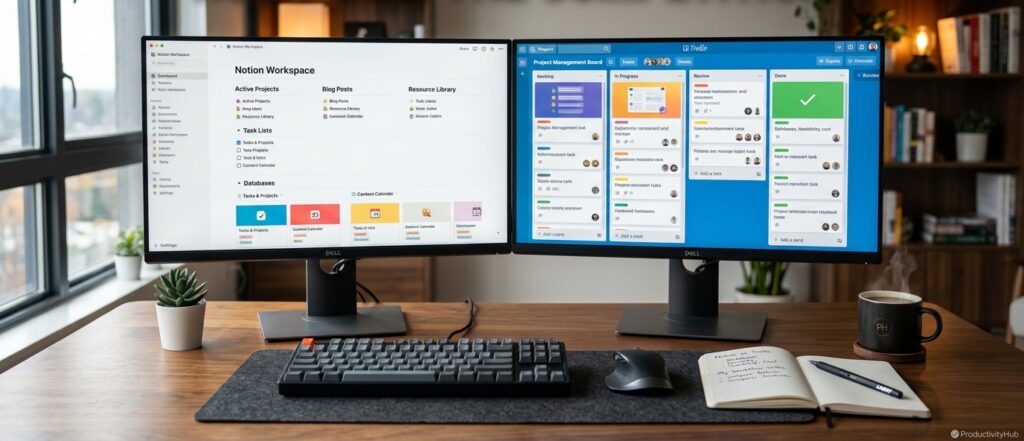
The same task database can be viewed as a simple checklist, a kanban board for visual progress tracking, or a calendar for scheduling — switching views doesn’t create separate data, it just changes how the existing tasks are displayed, which is the core trick behind Notion’s flexibility.
Notion Calendar and Time-Blocking
With Notion Calendar, you can time-block tasks from your database by dragging and dropping directly onto the calendar, closing the common gap between having a task list and actually finding time in your day to do the items on it.
Notion AI for Summaries and Auto-Tagging
Notion AI can auto-tag tasks, summarize lengthy notes, and provide custom setup guidance based on your work style, removing a layer of manual admin work — instead of tagging every task by hand, an AI property can categorize and prioritize incoming items automatically.
Featured Snippet: Notion AI reduces manual admin work in a productivity workspace by auto-summarizing notes, auto-tagging tasks by category or priority, and drafting first-pass content directly inside your existing databases.
Feature Table
| Feature | Productivity Benefit | Plan Availability |
|---|---|---|
| Tasks database | Central to-do system with due dates/status | Free and up |
| Board/Calendar views | Visual progress + scheduling | Free and up |
| Notion Calendar | Time-blocking against real tasks | Free and up |
| Notion AI summaries | Cuts note review time | Add-on / Business+ |
| AI auto-tagging | Removes manual categorization | Add-on / Business+ |
| AI Agents | Multi-step task automation | Business/Enterprise |
| Templates | Faster setup for common workflows | Free and up |
How the Productivity System Works
The system works because every piece of work — a task, a meeting note, a project page — lives in the same connected workspace instead of scattered across separate apps, so nothing requires context-switching to find. A task created from a meeting note can carry a due date straight into your calendar view without re-entering it anywhere.
Workflow
A typical daily workflow looks like this: capture new tasks into the Tasks database as they arise (from meetings, email, or ideas), review the “Today” filtered view each morning, time-block the top three items onto Notion Calendar, and close the day with a two-minute review that moves anything unfinished to tomorrow.
Dashboard Walkthrough
An effective productivity dashboard is one page combining a “Due Today” filtered task view, a mini calendar widget, a “This Week” project overview, and — for those who like it — a habit tracker block, all visible without scrolling past the fold.

Setup Guide
Start simple and add new features as your workflow grows instead of using everything at once — the single biggest predictor of whether someone keeps using Notion is whether their first workspace was small enough to actually maintain. Build one database, use it for two weeks, then expand.
Step-by-Step Tutorial
First, create a workspace and build a single “Tasks” database with Status, Due Date, and Priority properties. Second, create a “Today” filtered view showing only tasks due today or overdue. Third, connect Notion Calendar and drag your top three daily tasks onto actual time slots. Fourth, add a simple “Weekly Review” page with three questions: what got done, what didn’t, what carries over. Fifth, once this rhythm feels automatic — usually two to three weeks in — add a Projects database and link it to Tasks via a relation property.
Use Cases
Students use a single Tasks database filtered by class and due date to replace a paper planner entirely. Freelancers build a Projects-to-Tasks relation so every client engagement rolls up its own task list and deadline view. Remote employees use a shared team Tasks board to replace status-update meetings with an always-current view everyone can check.
Industry Use Cases
Marketing teams commonly run a shared content calendar database where every post has a status, owner, and publish date, replacing spreadsheet-based editorial calendars. Software teams use kanban-style Tasks boards synced with sprints to track engineering work without a separate tool. Consulting and agency teams use client-specific dashboards where every task rolls up into a single client-facing project status page.
Benefits
The clearest productivity benefit is consolidation — replacing a to-do app, a notes app, and a calendar tool with one connected system cuts the daily overhead of switching between apps just to see what’s due. A second major benefit is that Notion AI can absorb repetitive admin work like tagging and summarizing, freeing up time for actual task execution rather than task organization.
Limitations
Notion’s flexibility is also its biggest risk for productivity specifically — because you can build almost anything, it’s easy to spend more time designing your system than using it. The Business plan requirement for full AI access is a meaningful price jump for small teams, and large databases can start to show performance limitations as they grow.
Pros & Cons Table
| Pros | Cons |
|---|---|
| Replaces multiple apps with one workspace | Easy to over-engineer your setup |
| Free plan is genuinely usable long-term | Full AI Agents require a paid upgrade |
| Calendar + task integration closes the planning gap | Learning curve before it feels natural |
| Templates speed up initial setup | Templates can also encourage overload |
| Strong cross-device sync | Mobile quick-capture is more limited than dedicated apps |
Pros & Cons Explanation
The upside of Notion for productivity specifically is that once the core Tasks-Calendar-Review loop is built, it genuinely reduces the number of apps and context switches in a normal day. The downside is that this same flexibility invites over-customization — spending hours designing icons, covers, and nested databases is easy to mistake for actual productivity work.
Pricing Table
| Plan | Best For | Productivity-Relevant Inclusions |
|---|---|---|
| Free | Individuals | Unlimited pages/blocks, full task/database system |
| Plus | Small teams | Everything in Free + more history |
| Business | Growing teams | Full Notion AI, AI Agents |
| Enterprise | Large orgs | Advanced admin + AI at scale |
The free plan includes unlimited pages and blocks for personal use, which is enough to run the entire system described in this guide without paying anything. Check Notion’s official pricing page for current figures before budgeting.
Comparison Table
| Tool | Task Management | Calendar/Time-Blocking | AI Automation | Free Plan |
|---|---|---|---|---|
| Notion | Strong (custom databases) | Via Notion Calendar | Yes (paid tiers) | Yes |
| Todoist | Strong (dedicated) | Limited | Basic | Yes |
| Trello | Moderate (boards only) | Limited | Basic | Yes |
| Asana | Strong (team-focused) | Moderate | Yes (paid tiers) | Yes |
Security, Privacy, and Compliance
Personal productivity workspaces are private by default unless explicitly shared, and workspace owners can control page-level and team-level sharing permissions to keep sensitive task or project data restricted to the right people. Higher-tier plans add SSO and admin-level audit controls for organizations with stricter compliance needs. [external link: Notion trust and security center]
Performance
For individual productivity use, performance is rarely a concern — the system described in this guide involves a small number of databases that stay fast even as task counts grow into the thousands. Performance only becomes relevant at team scale with heavily relational, high-volume databases.
Integrations and API
Notion can integrate with many other apps and services with content sharing and automation, meaning a personal productivity setup can pull in calendar events, files, and even automated task creation from tools like email or form submissions without manual re-entry.
Customer Support
Support is available through Notion’s help center, community forums, and email support, with dedicated support channels typically reserved for Business and Enterprise customers.
Latest Updates
The most productivity-relevant 2026 development is the shift toward AI Agents that go beyond writing assistance into completing multi-step workflows — according to Notion, these agents handle repetitive tasks like transcribing calls, suggesting next steps, and even flagging workload patterns, freeing up time that used to go into manual task upkeep.

Expert Tips
Build your system around a daily review habit before adding any advanced database structure — the habit matters more than the schema. Iterate on AI output instead of expecting the first result to be final; refining a Notion AI draft with follow-up instructions produces far better results than a single one-shot prompt. Keep your dashboard to what fits on one screen without scrolling; anything that requires scrolling daily tends to get ignored within a week.
Common Mistakes
The most common mistake is importing an elaborate template pack before ever using a basic task list, which creates a system too complex to maintain from day one. A second common mistake is treating workspace design (icons, covers, nested pages) as productive work rather than the actual tasks themselves. A third is skipping the review habit entirely — a task database with no regular review becomes a graveyard of stale items within a month.
Troubleshooting
If your task list keeps growing without shrinking, the problem is almost always a missing or skipped review habit, not a missing feature. If your dashboard feels overwhelming, remove views and properties rather than adding more — simplicity is usually the fix. If Notion AI output feels generic, give it more specific instructions and iterate rather than abandoning the feature.
Myths vs. Facts
Myth: You need an elaborate, aesthetic template to be productive in Notion. Fact: a single plain Tasks database with three properties is enough to see real productivity gains. Myth: Notion AI replaces the need for you to plan your day. Fact: it removes administrative overhead like tagging and summarizing, but the planning and prioritizing decisions are still yours. Myth: Notion is only useful for teams. Fact Notion is a powerful tool for personal productivity when used correctly, independent of any team context.
Decision Matrix
| Criteria | Notion | Todoist | Trello |
|---|---|---|---|
| Setup flexibility | 9/10 | 5/10 | 6/10 |
| Ease for beginners | 6/10 | 8/10 | 8/10 |
| Calendar integration | 8/10 | 6/10 | 5/10 |
| AI automation | 8/10 | 4/10 | 4/10 |
| All-in-one consolidation | 9/10 | 4/10 | 5/10 |
Beginner vs. Advanced
Beginners should stick to one Tasks database, one filtered “Today” view, and a simple daily review — nothing more for at least the first month. Advanced users can layer in Projects-Tasks relations, rollups for progress tracking, AI auto-tagging, and eventually AI Agents for recurring multi-step workflows once the basic habit is established.
Best Alternatives
Todoist suits people who want pure task management without database complexity. Trello suits visual thinkers who prefer boards over structured properties. Asana suits teams whose primary need is structured project management with less flexibility but faster team onboarding.
Alternative Comparison
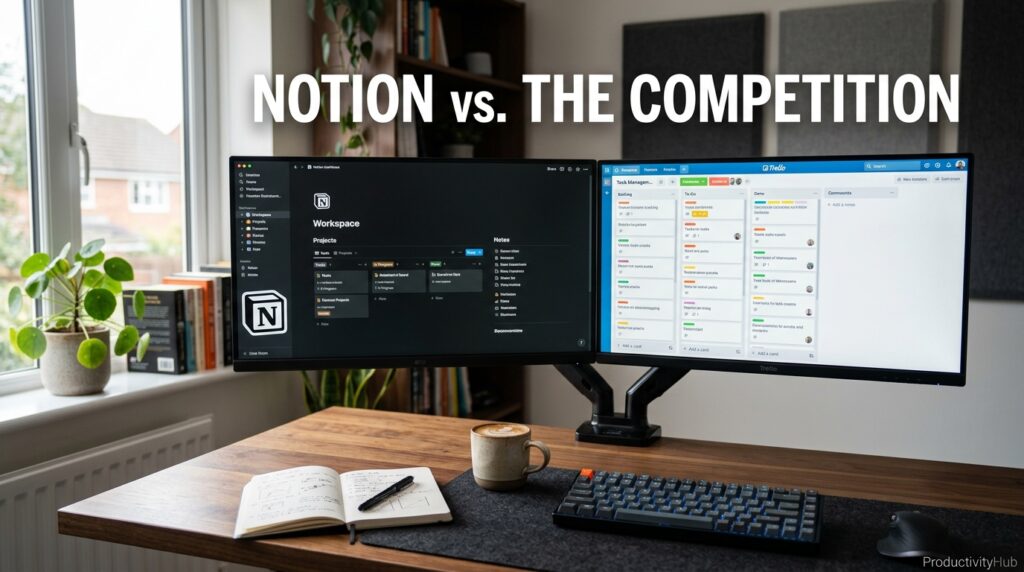
Compared to Todoist, Notion trades quick-capture simplicity for far more structural flexibility — better for building a full system, worse for a two-second mobile task add. Compared to Asana, Notion trades some out-of-the-box team-project structure for the ability to combine tasks with notes, wikis, and documents in the same space.
Who Should Use It
Anyone currently juggling three or more separate apps for notes, tasks, and calendars is the clearest candidate for consolidating into Notion, along with anyone who wants a system flexible enough to grow from personal use into full team collaboration without switching tools.
Who Should Avoid It
People who want a task manager that works instantly with zero setup, or teams that need pure high-volume project management without the flexibility overhead, may be better served by a single-purpose tool like Todoist or Asana instead.
FAQ
How do I start using Notion for productivity as a beginner?
Create one Tasks database with Status, Due Date, and Priority properties, build a filtered “Today” view, and use it daily for two weeks before adding anything else — starting simple is the single biggest factor in whether the system sticks.
Can Notion replace my to-do list app entirely?
Yes, for most individuals a single Tasks database with list, board, and calendar views covers everything a dedicated to-do app does, while also connecting tasks directly to notes and projects in the same workspace.
Does Notion AI actually save time on daily tasks?
Yes — auto-summarizing meeting notes and auto-tagging incoming tasks removes manual administrative work, though the AI Agent features that automate multi-step workflows currently require a Business-tier plan.
What’s the biggest mistake people make when starting with Notion?
Importing a large, elaborate template before ever using a basic task list, which creates a system too complex to maintain and is the most common reason people abandon Notion within the first month.
Is Notion Calendar necessary for a productivity setup?
It’s not strictly required, but connecting your Tasks database to Notion Calendar and time-blocking your top priorities each day closes the common gap between having a task list and actually finding time to complete it.
Is the free plan enough to run a full productivity system in Notion?
Yes — the free plan includes unlimited pages and blocks for personal use, which is enough to run the entire Tasks, Calendar, and Review workflow described in this guide without upgrading.
Rating Scorecard
| Category | Score |
|---|---|
| Ease of Setup | 7/10 |
| Task Management Power | 9/10 |
| Calendar Integration | 8/10 |
| AI Productivity Features | 8/10 |
| Overall | 8/10 |
Read more: Hidden Notion Features Most Users Don’t Know About: The Complete 2026 Guide
Conclusion
Boosting productivity with Notion was never really about learning every feature — it’s about building one small, connected system and actually returning to it every day. A Tasks database, a filtered daily view, a connected calendar, and a two-minute review habit will outperform the most beautifully designed template pack that gets abandoned after a week. The tool provides the structure; the daily habit is what makes it work.
The AI layer Notion has built out through 2026 — auto-tagging, summarizing, and now multi-step Agents — matters most as a way to remove administrative friction, not as a replacement for actually deciding what to prioritize. Used that way, it buys back time rather than adding another thing to manage.
If there’s one takeaway, it’s this: start smaller than feels impressive. Build the basic Tasks-Calendar-Review loop first, use it consistently for a few weeks, and only then start layering in relations, rollups, and AI automation. The people who get real productivity gains from Notion aren’t the ones with the most elaborate setups — they’re the ones who kept using a simple one long enough for it to become a habit.
Official Sources
- Notion official help center and documentation
- Notion official pricing page
- Notion 2026 release notes on AI Agents
Author Bio
Written and fact-checked by the editorial research team, using Notion’s official documentation, pricing pages, and 2026 product updates as primary sources, cross-checked against independent reporting on real-world productivity workflows.