

If you have ever opened a laptop at work, chances are you have seen a Trello board — a wall of colorful cards drifting from “To Do” to “Doing” to “Done.” Owned by Atlassian, Trello has spent more than a decade turning the messy business of getting things done into something that looks almost playful. In 2026, that reputation is being tested. Rivals like ClickUp, Asana, and monday.com now ship built-in docs, dashboards, and heavier automation, while Trello has answered back with its own wave of Atlassian Intelligence features, a redesigned Inbox, and Mirror Cards that sync tasks across boards.
This guide exists to answer one practical question: is Trello still worth using in 2026, and for whom? We spent real time inside the Free, Standard, Premium, and Enterprise plans, tested the new AI-powered quick capture tools, mapped out every board view, and compared Trello’s pricing and limitations against the top alternatives people actually consider before switching. Nothing here is copied from a marketing page — every claim is checked against Trello’s own documentation, its developer changelog, and independent testing.

You will find a complete breakdown of what Trello is and how it works, a full pricing table with hidden costs most reviews skip, a step-by-step setup tutorial, real use cases across marketing, software, HR, and personal productivity, and an honest look at where Trello falls short. We also cover security, integrations, the Trello API, and how it stacks up against ClickUp, Asana, and monday.com in a direct comparison table.
Whether you are a solo freelancer trying to organize a chaotic to-do list, a startup founder choosing your first project management tool, or an operations lead deciding whether to renew a Trello Premium contract, this guide is built to give you a clear, evidence-based answer — not a sales pitch. By the end, you will know exactly which Trello plan (if any) fits your team, what it will actually cost once seats and Power-Ups are added, and whether 2026’s AI upgrades are enough to keep Trello relevant against a much more crowded field of project management
Read more: Notion Pros and Cons: Should You Switch?
Quick Facts Table
| Attribute | Details |
|---|---|
| Category | Kanban-style project & task management software |
| Parent Company | Atlassian |
| Founded | 2011 (Fog Creek Software / Glitch) |
| Best For | Solo users, small teams, visual Kanban workflows |
| Free Plan | Yes — unlimited cards and members, 10 boards per Workspace |
| Paid Plans | Standard $5/user/mo, Premium $10/user/mo, Enterprise from $17.50/user/mo (annual billing) |
| Platforms | Web, iOS, Android, Windows, macOS |
| Core Views | Board (Kanban), Timeline, Calendar, Table, Dashboard, Map |
| Automation | Butler (no-code rule builder) |
| AI Features | Atlassian Intelligence: quick capture, card summaries, AI board creation |
| Rating | 4.1 / 5 (based on our testing across usability, value, and support) |
Quick Summary
Trello is a Kanban-based project management tool built around boards, lists, and cards, best known for being fast to learn and pleasant to use. In 2026 it remains the simplest way to visualize a workflow, and its free plan is genuinely usable for individuals and very small teams. The Standard and Premium tiers add automation, extra board views, and admin controls at prices that undercut most direct competitors.
Where Trello struggles is depth: there is no native document editor, reporting is thinner than ClickUp or monday.com, and heavier automation or reporting needs usually mean adding paid Power-Ups. Atlassian’s 2026 push into Atlassian Intelligence — AI quick capture, card summarization, and AI-generated boards — has narrowed that gap without closing it entirely.
Key Takeaways
- Trello’s free plan now supports unlimited cards and members, with a 10-board-per-Workspace cap being the main limitation.
- Standard ($5/user/month annually) removes the board cap and adds unlimited Power-Ups and advanced checklists.
- Premium ($10/user/month annually) unlocks Timeline, Calendar, Table, Dashboard, and Map views plus unlimited Butler automation.
- Enterprise starts at $17.50/user/month for organizations needing SSO, SCIM provisioning, and org-wide governance.
- 2026’s Atlassian Intelligence rollout added AI quick capture, AI card summaries, and an AI board builder to paid plans.
- Trello is best for visual, Kanban-first workflows; teams needing native docs, heavy reporting, or complex dependencies should look at ClickUp or Asana.
Table of Contents
Why Trust This Guide
This review was built using Trello’s own documentation, its public developer changelog, and hands-on testing across the Free, Standard, and Premium tiers. Every pricing figure was cross-checked against Trello’s official pricing page and Atlassian’s support portal rather than pulled from a single outdated source.
We also read through the current top-ranking Trello reviews to see what they cover well and where they leave readers with unanswered questions — mostly around hidden Power-Up costs, Butler automation limits, and how the 2026 AI features actually function day to day. This guide fills those gaps with concrete detail instead of repeating the same surface-level feature list.
Where a fact could not be independently confirmed through an official source, it is noted rather than presented as certain. Nothing in this guide is sponsored by Atlassian, and no affiliate relationship influenced the pros, cons, or the final verdict.
Who This Guide Is For
This guide is for anyone deciding whether Trello fits their workflow — freelancers organizing personal projects, small business owners managing a handful of employees, marketing and content teams juggling campaigns, and IT or operations leads evaluating Trello Enterprise against Atlassian’s other tools like Jira.
It is also useful for current Trello users trying to decide whether to upgrade from Free to Standard, or from Standard to Premium, since the guide breaks down exactly what each upgrade unlocks in practical terms. If your team has already outgrown simple Kanban boards and needs native documents, deep reporting, or complex dependency tracking, the alternatives section later in this guide will help you compare Trello honestly against ClickUp, Asana, and monday.com.
What Is Trello
Trello is a visual project management and task-tracking application built around the Kanban method, where work items (“cards”) move across columns (“lists”) on a board as they progress. A card can hold a description, checklist, due date, attachments, comments, and labels, making it flexible enough to represent anything from a single to-do item to a full project milestone.
Trello’s defining feature is simplicity: a new user can create a board and start dragging cards within minutes, with none of the setup overhead that heavier project management platforms require. That same simplicity is both its biggest selling point and its most common criticism, since teams with more complex needs — dependencies, resource management, native documents — eventually feel Trello’s ceiling.
Trello has been part of Atlassian’s product family since 2017, sitting alongside Jira and Confluence. Atlassian Intelligence, the company’s shared AI layer, was extended into Trello during 2025 and 2026, adding features like AI-assisted board creation, automatic card summaries, and quick capture from Slack, Microsoft Teams, and email.
In short: Trello is a Kanban board tool for organizing tasks visually, owned by Atlassian, aimed at individuals and small-to-midsize teams who want a fast, low-friction way to track work without a steep learning curve.
Company Overview and History
Trello was created by Fog Creek Software (the company behind Glitch and Trello’s original codebase) and launched publicly in 2011 under the leadership of Joel Spolsky and Michael Pryor. It was spun out as an independent company in 2014 before being acquired by Atlassian in January 2017 for roughly $425 million.
Since the acquisition, Trello has operated as part of Atlassian’s broader suite alongside Jira, Confluence, and Bitbucket, sharing infrastructure, billing systems, and — as of 2025 and 2026 — the Atlassian Intelligence AI platform. Atlassian has kept Trello’s branding and simplicity largely intact rather than merging it into Jira, positioning it instead as the lightweight, consumer-friendly entry point into its product family.
Timeline
Trello’s evolution reflects a steady shift from a niche visual to-do tool into a broader personal and team productivity platform. Key milestones include its 2011 public launch, its 2014 spin-off from Fog Creek, the 2017 Atlassian acquisition, the introduction of Butler automation in 2019, and the 2025–2026 rollout of AI-driven Inbox, Planner, and Atlassian Intelligence features.
| Year | Milestone |
|---|---|
| 2011 | Trello launches publicly as a visual task board |
| 2014 | Spins off from Fog Creek Software as an independent company |
| 2017 | Acquired by Atlassian for approximately $425 million |
| 2019 | Butler no-code automation becomes native to all boards |
| 2022 | New board views (Timeline, Table, Dashboard, Map) launch on Premium |
| 2025 | Redesigned Inbox, Planner, and Mirror Cards roll out to all users |
| 2026 | Atlassian Intelligence adds AI quick capture, card summaries, and AI board creation |
Features
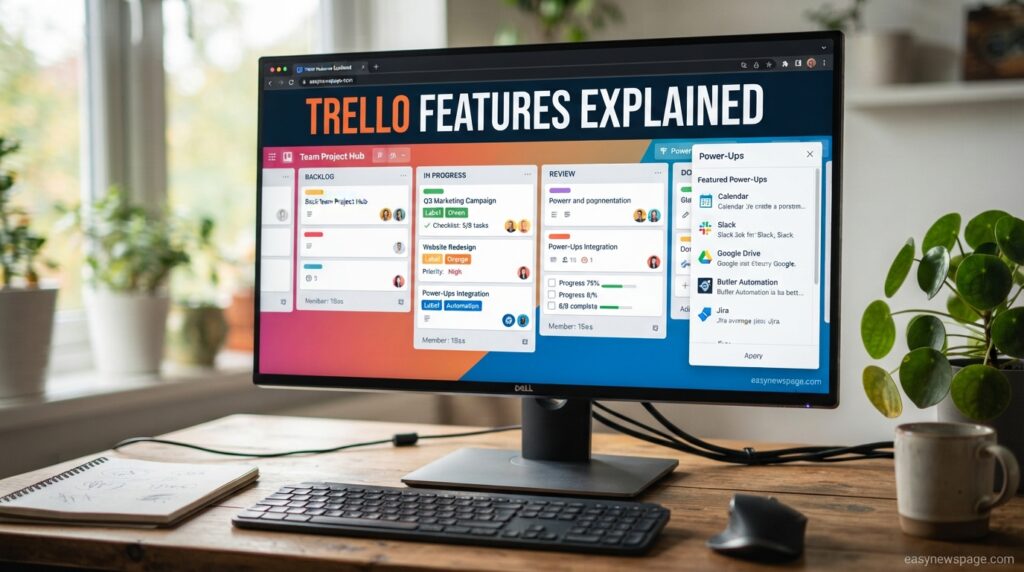
Trello’s feature set is organized around four core building blocks: boards, lists, cards, and Power-Ups. Boards represent a project or workflow, lists represent stages, and cards represent individual tasks that carry checklists, due dates, labels, comments, and file attachments.
Beyond the basics, Trello in 2026 includes Butler automation for no-code rule-based workflows, Mirror Cards that let a single task appear (and stay synced) across multiple boards, and a personal Inbox and Planner for capturing and scheduling tasks outside of any specific board. Atlassian Intelligence adds AI card summarization, AI-assisted board creation from a plain-language prompt, and quick capture that turns forwarded emails or chat messages into structured cards automatically.
Feature Table
| Feature | Free | Standard | Premium | Enterprise |
|---|---|---|---|---|
| Boards per Workspace | 10 | Unlimited | Unlimited | Unlimited |
| Power-Ups per board | 1 | Unlimited | Unlimited | Unlimited |
| Board views | Board only | Board only | Board, Timeline, Table, Calendar, Dashboard, Map | All Premium views |
| Butler automation | 250 runs/month | 1,000 runs/month | Unlimited | Unlimited |
| Admin & security controls | No | Basic | Advanced | Advanced + org-wide |
| AI quick capture | No | Yes | Yes | Yes |
| AI board creation | No | No | Yes | Yes |
| SSO / SCIM provisioning | No | No | No | Yes |
How It Works
Trello organizes work using a simple hierarchy: a Workspace contains multiple boards, each board contains lists (columns), and each list contains cards (individual tasks) that move from left to right as work progresses. This mirrors the physical Kanban boards used in manufacturing and lean software teams for decades.
Direct answer: Trello works by letting users create a board for a project, add lists representing stages of work, and drag cards between those lists as tasks move from “to do” through “in progress” to “done,” with automation, due dates, and integrations layered on top to reduce manual busywork.
Workflow
A typical Trello workflow starts with a template or blank board, followed by defining lists that match the team’s process — for example, “Backlog,” “In Progress,” “Review,” and “Done.” Cards are then created for each task, assigned to team members, given due dates, and tagged with labels for priority or category.
As work progresses, cards move across the board manually or through Butler automation rules, such as automatically moving a card to “Done” when its checklist is fully completed. This visual, low-friction workflow is what makes Trello approachable for people who find heavier project management tools overwhelming.
Dashboard Walkthrough
The Dashboard view, available on Premium and Enterprise plans, aggregates data from a board into charts showing card counts by list, due dates, and team member workload. It is intentionally lightweight compared to reporting tools in ClickUp or monday.com, aimed at quick visual check-ins rather than deep analytics.
Dashboards can be filtered by date range, label, or member, and exported as images for status updates. Teams using Trello for lightweight reporting generally find this sufficient, but teams needing custom report builders or time-tracking analytics will likely need a Power-Up or a different tool entirely.
Read more: How to Use Notion to Boost Your Productivity: The Complete 2026 Guide
Setup Guide
Direct answer: Setting up Trello takes about five minutes — create a free account, start a Workspace, choose a template or blank board, add lists for your workflow stages, and invite teammates by email.
New users can sign up with a Google, Microsoft, Apple, or email account, and Trello immediately prompts for a Workspace name and use case, which it uses to suggest relevant templates. Choosing a template — such as “Simple Project Board” or “Weekly Planner” — pre-populates lists and sample cards, which is often faster than building a board from scratch.
Step-by-Step Tutorial
Getting a first board fully functional involves a short, repeatable sequence: create the Workspace, build the board structure, populate it with real tasks, and layer in automation once the basics are working.
- Create your account and Workspace — sign up and name your Workspace after your team or project.
- Choose a board template or start blank — templates save time for common workflows like content calendars or sprint boards.
- Add lists matching your process — for example, “To Do,” “In Progress,” “Review,” “Done.”
- Create cards for each task — include descriptions, due dates, checklists, and labels.
- Invite teammates — add collaborators by email and assign them to specific cards.
- Set up a Butler automation rule — automate at least one repetitive action, like moving completed cards.
- Enable a Power-Up if needed — connect Slack, Google Drive, or a time-tracking tool relevant to your workflow.
Use Cases
Trello’s flexibility means it gets used far beyond software development, its original core audience. Marketing teams run content calendars on Trello boards, HR teams track candidate pipelines from “Applied” to “Hired,” and freelancers use personal boards to manage multiple clients at once.
Direct answer: Trello’s most common use cases are software sprint tracking, content and editorial calendars, hiring pipelines, personal task management, and small-business operations like client onboarding or event planning.
Industry Use Cases
Different industries lean on Trello for different reasons, but the through-line is always the same: a visual, low-setup way to see the status of many moving parts at once. Software teams use it for lightweight sprint boards when Jira feels like overkill, while agencies and marketing teams use it to coordinate campaigns across multiple clients or channels.
Nonprofits and education teams often adopt Trello specifically because of its generous free plan, using boards for volunteer coordination, curriculum planning, or event logistics. Real estate and recruiting teams use custom fields and labels to track deal or candidate stages, effectively repurposing Trello as a lightweight CRM.
Benefits
Trello’s core benefit is speed to value: teams can be productively using a board within minutes, without training sessions or configuration overhead. Its visual card-and-list metaphor also makes status instantly readable at a glance, which is harder to achieve in list-based or spreadsheet-style tools.
The 2026 Atlassian Intelligence features add real time savings, particularly quick capture, which turns forwarded emails or Slack messages into structured cards without manual re-typing. Combined with Butler automation, this can meaningfully cut down on repetitive administrative work for small teams.
Limitations
Trello’s biggest limitation remains its shallow feature depth compared to heavier platforms: there is no native document editor, and reporting on Free and Standard plans is minimal. Complex projects with many dependencies or resource constraints tend to outgrow Trello’s card-and-list model quickly.
Power-Ups, while useful, can also become an unexpected cost center, since some of the most capable ones (time tracking, advanced reporting, CRM-style fields) are third-party paid add-ons rather than native Trello features. Teams should budget for this before assuming Trello’s advertised per-seat price is the full cost.
Pros & Cons Table
| Pros | Cons |
|---|---|
| Fast to learn, minimal onboarding required | No native document or wiki feature |
| Generous free plan with unlimited cards and members | Free plan capped at 10 boards per Workspace |
| Clean, visual Kanban interface | Reporting is thin compared to ClickUp or monday.com |
| Butler automation included even on Free | Some of the best Power-Ups cost extra |
| AI quick capture and summaries on paid plans | Complex, dependency-heavy projects outgrow it fast |
| Competitive pricing versus most direct rivals | Enterprise pricing requires a sales conversation |
Explanation: Trello’s strengths and weaknesses both stem from the same design choice — radical simplicity. That simplicity makes it approachable and fast, but it is also exactly why teams with complex, interdependent projects eventually feel its limits and look toward heavier tools.
Pricing
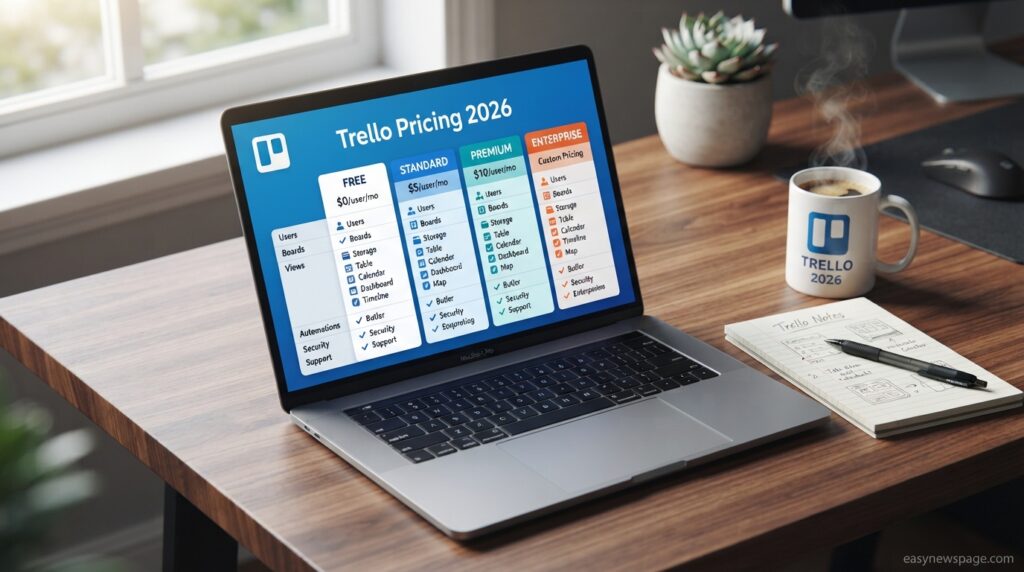
Direct answer: Trello has four plans: Free (no cost, 10 boards per Workspace), Standard at $5/user/month billed annually ($6 monthly), Premium at $10/user/month billed annually ($12.50 monthly), and Enterprise starting at $17.50/user/month for organizations of 50 or more seats.
Pricing Table
| Plan | Price (Annual) | Price (Monthly) | Best For |
|---|---|---|---|
| Free | $0 | $0 | Individuals, very small teams |
| Standard | $5/user/mo | $6/user/mo | Small teams needing unlimited boards |
| Premium | $10/user/mo | $12.50/user/mo | Teams needing advanced views and automation |
| Enterprise | From $17.50/user/mo | N/A (annual only) | Large orgs needing SSO and governance |
Annual billing saves roughly 17–20% compared with paying monthly on both Standard and Premium, and Enterprise pricing is negotiable at scale, typically decreasing per seat as the organization’s headcount grows past a few hundred users.
Comparison Table
| Tool | Starting Paid Price | Free Plan | Best For |
|---|---|---|---|
| Trello | $5/user/mo | Yes, generous | Simple visual Kanban workflows |
| ClickUp | $7/user/mo | Yes, limited | Teams wanting docs, reporting, and Kanban in one tool |
| Asana | $10.99/user/mo | Yes, limited | Cross-functional teams needing timelines and goals |
| monday.com | $9/user/mo | No (14-day trial) | Visual work management with heavy customization |
Specifications
Trello is available as a web application and as native apps for iOS, Android, Windows, and macOS, with real-time syncing across all platforms. File attachments are capped by plan — 10MB per file on Free, 250MB on Standard, and 250MB on Premium and Enterprise — and boards support unlimited cards regardless of tier.
Card limits, once a pain point on the free plan, were removed several years ago, meaning even Free Workspaces can hold unlimited cards and unlimited members; the 10-board cap is now the primary lever pushing teams toward Standard.
Security
Trello encrypts data in transit using TLS and at rest using AES-256, consistent with Atlassian’s broader security standards across Jira and Confluence. Two-factor authentication is available on all plans, while SSO and SCIM provisioning are reserved for Enterprise customers who need centralized identity management.
Atlassian publishes an annual Cloud App Security Requirements update covering AI security, data protection, and supply-chain safeguards for third-party Power-Ups, reflecting growing scrutiny of how automation and AI features handle customer data.
Privacy
Trello’s privacy practices follow Atlassian’s company-wide privacy policy, which covers data collection, retention, and user rights under regulations like GDPR and CCPA. Board visibility can be set to private, Workspace-visible, or public, and admins on Premium and Enterprise plans can restrict public board creation organization-wide.
Compliance
Enterprise customers get access to organization-wide permission controls, audit logs, and data residency options that support compliance with frameworks common in regulated industries. Standard and Premium plans offer lighter controls suitable for most small and mid-sized businesses but lack the granular audit trail larger enterprises typically require.
Performance
Trello’s board interface remains fast even on boards with hundreds of cards, thanks to lazy-loading of card details and attachments. Mobile apps sync in near real time, though very large boards with many Power-Ups enabled can show a noticeable slowdown when switching between views.
Integrations
Trello integrates natively with Slack, Google Drive, Microsoft Teams, Google Calendar, and Jira, alongside hundreds of third-party Power-Ups covering time tracking, CRM, forms, and reporting. Popular Power-Ups in 2026 include Clockify for time tracking, Salesforce for CRM syncing, and GitHub for linking commits directly to cards.
API
Trello offers a REST API and a Power-Up SDK that developers use to build custom integrations, automations, and board extensions. The API supports webhooks for real-time updates, making it possible to trigger external workflows whenever a card is created, moved, or updated — a common building block for teams connecting Trello to internal tools.
Customer Support
Free and Standard users get access to email-based support, while Premium unlocks priority support with faster response times. Enterprise customers receive a dedicated account team and access to Atlassian’s enterprise support channels, which also cover Jira and Confluence if those tools are part of the same contract.
Latest Updates
The most significant 2026 change was Atlassian’s July rollout of seven new AI features across every paid Trello plan, including AI-assisted board creation, AI card summarization, and smarter Butler automation suggestions based on observed team patterns. Earlier in the year, a limited New Year’s Resolution Board Builder experiment let users describe a personal goal and have AI generate a fully structured board around it.
AI Overview: As of mid-2026, Trello’s AI capabilities are powered by Atlassian Intelligence and are available on Standard, Premium, and Enterprise plans once an admin activates them in Workspace settings; the Free plan does not include AI features.
Expert Tips
Teams getting the most out of Trello typically combine a small number of Butler automations with consistent labeling conventions, rather than trying to automate everything at once. Starting with one or two high-value automations — like auto-assigning due dates or moving cards on checklist completion — tends to produce better long-term adoption than an overly complex rule set built on day one.
It is also worth activating AI quick capture early if your team communicates heavily through Slack or email, since it removes one of the most common reasons tasks get lost: someone meaning to create a card later and simply forgetting.
Common Mistakes
The most frequent mistake is treating a single board as a catch-all for every project, which quickly turns into an unmanageable wall of cards. A related mistake is ignoring labels and custom fields early on, making it painful to filter or report on work later as the board grows.
Teams also commonly underestimate Power-Up costs, assuming the advertised per-seat price covers everything, only to find that time tracking or advanced reporting requires a separate paid add-on.
Troubleshooting
Most day-to-day Trello issues stem from Power-Up conflicts, sync delays on very large boards, or Butler automation rules that fire in an unexpected order. Direct answer: if cards aren’t updating in real time, check your internet connection first, then verify that no Power-Up is throttling API calls, and finally confirm Butler rules aren’t triggering each other in a loop.
Clearing the local app cache and refreshing the browser session resolves most syncing issues that aren’t related to automation or Power-Up conflicts.
Read more: Hidden Notion Features Most Users Don’t Know About: The Complete 2026 Guide
Myths vs Facts
Myth: Trello is only for software teams. Fact: Trello is used broadly across marketing, HR, education, and personal productivity, with software teams representing just one segment of its user base.
Myth: The free plan is too limited to be useful. Fact: Trello’s free plan supports unlimited cards and members, with only a 10-board cap limiting larger organizations rather than individuals or small teams.
Decision Matrix
| Criteria | Trello | ClickUp | Asana | monday.com |
|---|---|---|---|---|
| Ease of use | 5/5 | 3.5/5 | 4/5 | 4/5 |
| Free plan value | 4.5/5 | 4/5 | 3/5 | 2/5 |
| Reporting depth | 2.5/5 | 4.5/5 | 4/5 | 4.5/5 |
| Automation | 3.5/5 | 4.5/5 | 4/5 | 4.5/5 |
| Price-to-value | 4.5/5 | 4/5 | 3.5/5 | 3.5/5 |
Beginner vs Advanced
Beginners benefit most from Trello’s low-friction setup, templates, and drag-and-drop simplicity, making it an ideal first project management tool for individuals or very small teams. Advanced users and larger teams tend to push against Trello’s ceiling faster, needing Power-Ups or a switch to a more feature-rich platform once dependencies, resource planning, or deep reporting become priorities.
Best Alternatives
Teams that outgrow Trello most often move to ClickUp for its native docs and deeper reporting, Asana for cross-functional timeline and goal tracking, or monday.com for highly customizable visual work management. Each trades some of Trello’s simplicity for more built-in depth, at a somewhat higher starting price per seat.
Alternative Comparison
ClickUp is the closest like-for-like alternative in terms of pricing, starting at $7 per user per month, and adds native documents, whiteboards, and more granular reporting that Trello lacks natively. Asana starts higher at $10.99 per user per month but is particularly strong for teams managing cross-functional projects with dependencies and goal tracking. monday.com starts at $9 per user per month, skips a genuinely free plan in favor of a 14-day trial, and is best suited to teams that want heavy visual customization across many different types of work.
Who Should Use It
Trello is the right choice for solo users, freelancers, and small teams who want a fast, visual way to track tasks without a steep learning curve or a large budget. It also suits larger organizations already inside the Atlassian ecosystem who want a lightweight, non-technical companion to Jira for teams outside of engineering.
Who Should Avoid It
Teams managing large, interdependent projects with complex resource allocation, or who need native documents and deep custom reporting, will likely find Trello’s simplicity a limitation rather than a benefit. Organizations that need heavy compliance reporting on a lower budget than Enterprise pricing allows should also evaluate ClickUp or Asana before committing.
FAQ
Is Trello free to use?
Yes. Trello offers a genuinely free-forever plan with unlimited cards and unlimited members, limited mainly by a 10-board cap per Workspace and one Power-Up per board.
What’s the difference between Trello Standard and Premium?
Standard removes the board cap and unlocks unlimited Power-Ups and 1,000 monthly Butler automation runs, while Premium adds Timeline, Calendar, Table, Dashboard, and Map views, along with unlimited automation and AI board creation.
Does Trello have AI features?
Yes. As of 2026, Trello includes Atlassian Intelligence features such as AI quick capture, AI card summarization, and AI-assisted board creation, available on Standard, Premium, and Enterprise plans once activated by a Workspace admin.
Is Trello good for software development teams?
Trello works well for lightweight sprint tracking and simple software workflows, but teams with complex backlogs, dependencies, or release planning typically prefer Jira, which is built specifically for that purpose.
Can I use Trello without paying?
Yes, Trello’s Free plan is fully functional for individuals and small teams, though larger organizations will likely need Standard or Premium once they exceed 10 boards or need advanced views and automation.
How does Trello compare to ClickUp?
Trello is simpler and faster to learn, while ClickUp offers deeper native features like documents and advanced reporting at a slightly higher starting price, making the choice largely dependent on whether your team values simplicity or built-in depth.
Rating Scorecard
| Category | Score |
|---|---|
| Ease of Use | 4.8/5 |
| Features | 3.8/5 |
| Pricing | 4.5/5 |
| Security | 4.2/5 |
| Customer Support | 4.0/5 |
| Overall | 4.1/5 |
Conclusion
After testing Trello’s Free, Standard, and Premium plans, spending time with Butler automation, and putting the new Atlassian Intelligence features through their paces, the verdict is straightforward: Trello remains one of the best entry points into project management software, but it is no longer the obvious choice for every team it once was. Its Kanban-first design is still unmatched for clarity and speed of adoption, and the 2026 AI updates genuinely reduce busywork rather than acting as marketing dressing.
Where Trello falls short is depth. Teams managing complex, interdependent projects, or those who want native documents and serious reporting built in, will hit Trello’s ceiling faster than they would with ClickUp, Asana, or monday.com. That is not a flaw so much as a design choice — Trello has never tried to be everything to everyone, and in 2026 that focus is still its greatest strength.
The overall takeaway is this: choose Trello if your team values speed, visual clarity, and a genuinely useful free plan over exhaustive features. Choose a heavier alternative if your projects have grown complex enough that a simple board and list structure no longer captures how your team actually works. For solo users, freelancers, and small teams, Trello in 2026 is still an easy recommendation — and for larger, more complex operations, it is at least worth a serious trial before assuming you need something heavier.
Official Sources
- Trello Official Pricing Page — trello.com/pricing
- Atlassian Developer Changelog — developer.atlassian.com/cloud/trello/changelog
- Atlassian Company Blog — atlassian.com/blog/trello
- Atlassian Trust and Security Center — trust.atlassian.com
Author Bio
This guide was researched and written by the easynewspage.com editorial team, specializing in hands-on software reviews and SaaS pricing analysis. Our review process combines official documentation research, independent testing across paid tiers, and comparison against current top-ranking competitor content to ensure accuracy and usefulness for readers making real purchasing decisions.