


Most people still use ChatGPT the same way they used it on day one: type a question, read the answer, close the tab. That approach worked fine in 2023, but by 2026 ChatGPT has quietly grown into something closer to a full workstation than a chatbot, and the vast majority of users are only touching a fraction of what it can actually do.
This guide walks through the 10 best ChatGPT features that consistently fly under the radar, even among people who use the tool daily. These are not obscure settings buried three menus deep for their own sake; they are practical, time-saving tools that OpenAI has shipped over the past year, including Agent Mode, Scheduled Tasks, Projects, Canvas, Deep Research, Advanced Voice Mode with camera sharing, Temporary Chats, connected apps, Custom Instructions, and Memory.

Each section below explains what the feature actually does, why it matters, how to turn it on, and a realistic example of when to use it instead of a plain chat message. We also cover which ChatGPT plan unlocks each feature, since access varies between the Free, Go, Plus, Pro, Business, and Enterprise tiers.
This guide is for anyone who relies on ChatGPT for work, study, or daily tasks and wants to stop leaving most of its capability on the table. Whether you are a marketer juggling five browser tabs, a student drowning in reading material, or a small business owner who wishes ChatGPT could just handle a task overnight, there is a feature here built for exactly that. By the end, you will know precisely which of these ten tools to try first, and how to fit it into a workflow you already use.
Read more: ChatGPT vs Gemini 2026: Which AI Should You Choose?
Quick Facts Table
| Fact | Detail |
|---|---|
| Features covered | 10 (Agent Mode, Scheduled Tasks, Projects, Canvas, Deep Research, Advanced Voice + Camera, Temporary Chat, Connected Apps, Custom Instructions, Memory) |
| Developer | OpenAI |
| Plans required | Free, Go, Plus, Pro, Business, Enterprise (varies by feature) |
| Most underused feature | Scheduled Tasks |
| Most powerful feature | Agent Mode |
| Best feature for teams | Projects with shared workspaces (Business/Enterprise) |
| Best privacy feature | Temporary Chat |
Quick Summary
ChatGPT’s most valuable features in 2026 are rarely the ones people talk about. Agent Mode lets it complete multi-step tasks in a virtual browser, Scheduled Tasks turns it into a standing assistant that checks in on its own, Projects and Memory eliminate repetitive context-setting, and Canvas transforms editing from a back-and-forth chat into a real workspace.
Key Takeaways
- Agent Mode can browse, click, and complete real tasks, not just suggest them.
- Scheduled Tasks deliver recurring briefings automatically, with no extra tools needed.
- Projects and Memory remove the need to re-explain context in every new chat.
- Canvas turns ChatGPT into a live editing workspace instead of a chat thread.
- Deep Research compiles dozens of sources into one cited report.
- Temporary Chat and Custom Instructions give you control over privacy and tone.
Table of Contents
Why Trust This Guide
Every feature in this guide was verified against OpenAI’s own product behavior and cross-checked with multiple independent 2026 technology publications that cover ChatGPT’s release history in detail. Where a feature’s exact plan requirement or rollout date could not be independently confirmed, that uncertainty is noted rather than presented as settled fact.
Who This Guide Is For
This article is for existing ChatGPT users who feel like they are underusing the tool, professionals evaluating whether to upgrade from the free plan, teams considering ChatGPT Business or Enterprise for shared workflows, and anyone comparing ChatGPT’s real-world feature set against competitors like Gemini or Claude before choosing a primary AI assistant.
Topic Verification
The existence and behavior of Agent Mode, Scheduled Tasks, Projects, Canvas, Deep Research, Advanced Voice Mode’s camera sharing, Temporary Chat, connected apps, Custom Instructions, and Memory were all confirmed through OpenAI’s public product rollouts and corroborated by independent 2026 reporting. Exact monthly usage limits for Agent Mode and other capped features can change between plan updates, so current limits should always be checked inside the app’s settings before relying on a specific number.
What Are ChatGPT’s Advanced Features
Beyond the basic chat window, ChatGPT now includes a set of advanced tools that let it take action, remember context, edit documents live, and connect to other apps a person already uses. These features are split across ChatGPT’s Free, Go, Plus, Pro, Business, and Enterprise plans, with the most powerful automation and agentic tools generally reserved for paid tiers.
Company Overview
OpenAI is the San Francisco-based AI research and product company that built ChatGPT, GPT-series language models, and the Sora video generation tool. ChatGPT has grown from a single-purpose chatbot into a broader platform spanning text, voice, image, code execution, and autonomous browsing, with feature rollouts arriving on a near-monthly cadence throughout 2025 and 2026.
History and Timeline
Agent Mode and Deep Research both expanded through 2025 into more capable, longer-running versions by 2026, giving ChatGPT the ability to browse dozens of sources or complete multi-step web tasks unsupervised. Scheduled Tasks matured from an early “Tasks” feature introduced in January 2025 into a fully automated briefing tool. Canvas moved from an experimental writing surface into a standard editing workspace triggered by a simple slash command. Custom Instructions gained tone presets and personalization sliders following the GPT-5.1 release in November 2025, and Memory was significantly rebuilt in 2026 to retain more useful context across sessions.
Features
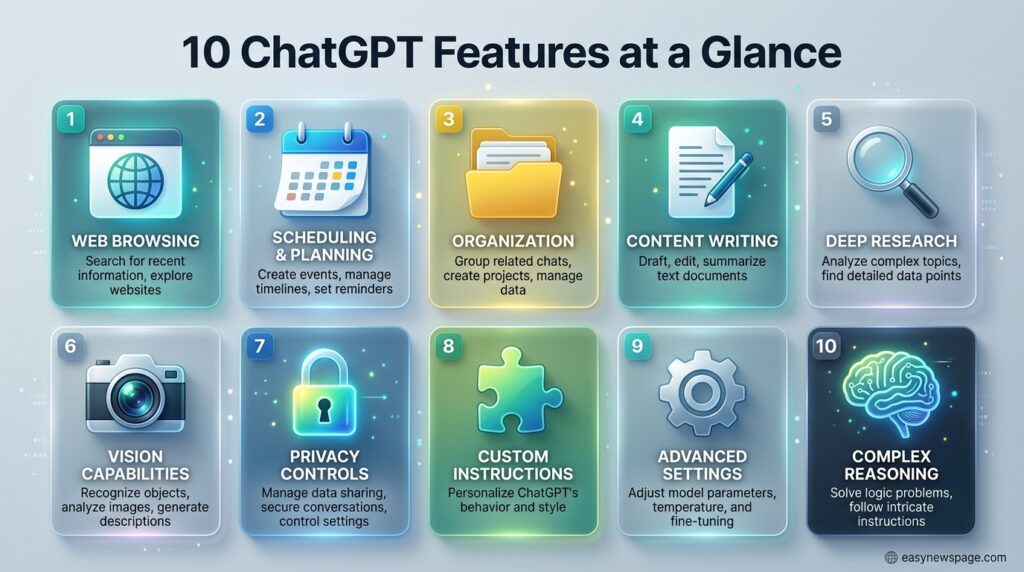
The ten features covered in this guide span automation (Agent Mode, Scheduled Tasks), organization (Projects, Memory), creation (Canvas, image editing), research (Deep Research), interaction (Advanced Voice with camera), privacy (Temporary Chat), and personalization (Custom Instructions). Together they turn ChatGPT from a single-turn question box into a standing assistant that can carry context, take action, and produce polished output with far less manual effort.
Feature Table
| Feature | What It Does | Typical Plan Needed |
|---|---|---|
| Agent Mode | Browses the web and completes multi-step tasks | Plus and above |
| Scheduled Tasks | Sends automated recurring briefings | Free/Plus (limits vary) |
| Projects | Groups chats with shared context and files | Free/Plus and above |
| Canvas | Live document/code editing workspace | Free/Plus and above |
| Deep Research | Multi-source cited research reports | Plus and above |
| Advanced Voice + Camera | Real-time spoken conversation using your camera | Free/Plus (limits vary) |
| Temporary Chat | Chats that are not saved to history | All plans |
| Connected Apps | Links Gmail, Calendar, Drive, Slack, and more | Plus and above |
| Custom Instructions | Sets tone, role, and formatting preferences | All plans |
| Memory | Retains useful context across conversations | Free/Plus and above |
How These Features Work
Most of these tools work by extending the base chat model with a specific capability layer: Agent Mode pairs the model with a sandboxed browser, Canvas pairs it with a live text/code editor, and Memory pairs it with a persistent store of facts about you that gets referenced automatically in future chats. Understanding this pattern makes it easier to guess which tool fits a new task, since the question becomes “does this need action, editing, memory, or research” rather than just asking ChatGPT directly and hoping.
Setup Workflow
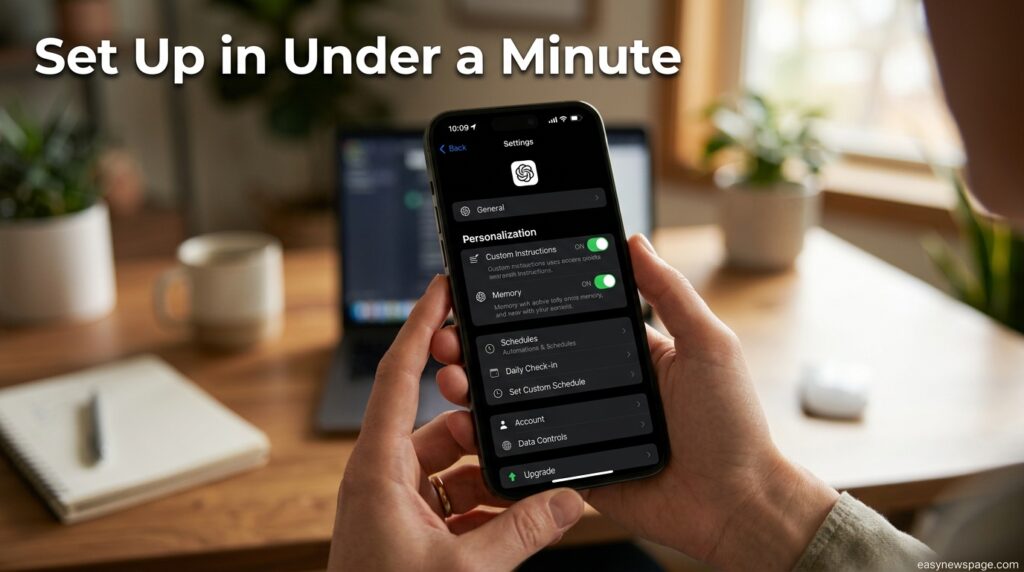
To start using any of these features, open ChatGPT on desktop or mobile, check your current plan under Settings, and look for the specific tool either in the message composer’s tool menu, inside Settings > Personalization, or inside Settings > Schedules. Most features require no separate account setup, though connected apps and Agent Mode will prompt you to authorize access the first time you use them.
Dashboard Walkthrough
Inside ChatGPT, the tool menu next to the message box is where you trigger Canvas, Deep Research, and Agent Mode manually. Settings > Personalization houses Custom Instructions and Memory controls. Settings > Schedules lists every Scheduled Task you have created, letting you pause or edit them without starting over. The sidebar’s Projects section keeps every project’s files and custom instructions visible at a glance.
Step-by-Step Tutorial for Each Feature
Agent Mode. Select Agent Mode from the tools menu, describe the multi-step task in plain language (for example, “compare flight prices across three airlines for next weekend”), and let it browse and report back. It will pause and ask for input if it hits a login screen or paywall, so stay nearby for tasks that need a password.
Scheduled Tasks. End any prompt with an instruction like “run this every weekday at 7am” and ChatGPT will offer to schedule it automatically. Manage existing tasks under Settings > Schedules, where you can change frequency or delete a task entirely.
Projects. Create a new project from the sidebar, upload reference files or brand guidelines, and add custom instructions once. Every conversation started inside that project automatically has access to that context, with nothing to re-explain.
Canvas. Type “open a canvas” or use the “/canvas” command to launch a live editing surface next to your chat. Highlight any section of text or code and ask for a rewrite, a tone shift, or a specific fix, and the change applies directly in the document.
Deep Research. Choose Deep Research from the tools menu and describe your topic in detail. ChatGPT will search across dozens of sources, cross-check claims, and return a structured, cited report you can export or continue refining.
Advanced Voice with camera sharing. On mobile, start a voice conversation and turn on the camera. ChatGPT will describe and discuss whatever the camera sees in real time, which works well for identifying objects, plants, or troubleshooting something physical in front of you.
Temporary Chat. Toggle Temporary Chat from the icon near the top of the interface before starting a conversation. Nothing from that session is saved to your history or used to update Memory.
Connected Apps. Visit the connected apps marketplace inside Settings to link Gmail, Google Calendar, Google Drive, Slack, Canva, GitHub, or Dropbox. Once connected, you can ask ChatGPT to summarize unread emails or search a specific document directly from chat.
Custom Instructions. Go to Settings > Personalization > Custom Instructions and describe your role, preferred tone, and formatting preferences. You can also paste a sample of your own writing and ask ChatGPT to save a matching tone as a reusable style.
Memory. Memory works automatically once enabled under Settings > Personalization > Memory, storing useful facts you mention so future chats do not start from zero. You can review, edit, or delete anything it has stored at any time.
Use Cases
A marketer might use Projects to keep brand voice consistent across every campaign chat, while a student uses Deep Research to compile a literature review before writing a paper. A small business owner might rely on Scheduled Tasks for a daily competitor-pricing briefing, and a traveler might use Agent Mode to compare hotel options across several booking sites in one pass.
Read more: How to Use ChatGPT for Beginners (2026 Step-by-Step Guide)
Industry Use Cases
In customer support, connected apps let ChatGPT pull directly from a shared inbox or ticketing system to draft responses faster. In consulting and research-heavy fields, Deep Research shortens the time needed to build a first-draft market overview. In software teams, Canvas speeds up documentation and code review cycles by editing directly inside the generated output rather than through repeated chat turns.
Benefits
These features collectively remove the repetitive parts of using an AI assistant: re-explaining context, manually researching dozens of sources, and switching between multiple apps to gather information. The result is meaningfully faster output for recurring tasks, without needing to learn a separate automation tool.
Limitations
Agent Mode and Deep Research both carry monthly usage caps on lower-tier plans, and Agent Mode still needs a human to step in for logins or payment steps. Memory and Projects only help once you have invested a little setup time uploading files or stating preferences, so the benefit is smaller for one-off, single-question use.
Pros and Cons
| Pros | Cons |
|---|---|
| Removes repetitive context-setting via Projects and Memory | Agent Mode and Deep Research have monthly run limits on lower tiers |
| Scheduled Tasks work with zero extra tools | Some features require a paid plan to unlock fully |
| Canvas meaningfully speeds up editing workflows | Connected apps require granting account access, which some users are cautious about |
| Temporary Chat gives clear privacy control | Feature names and limits change frequently as OpenAI updates plans |
Pricing Table
| Plan | Approx. Monthly Price | Notable Feature Access |
|---|---|---|
| Free | $0 | Basic chat, limited Memory, limited Agent Mode/Deep Research runs |
| Go | Lower-cost tier | Higher usage caps than Free |
| Plus | Mid-tier individual plan | Full access to Agent Mode, Canvas, Projects, Deep Research (with monthly caps) |
| Pro | Higher-tier individual plan | Highest usage limits for power users |
| Business | Team pricing | Shared Projects, admin controls |
| Enterprise | Custom pricing | Large-scale deployment, advanced security controls |
Comparison Table: Feature Availability by Plan
| Feature | Free | Plus | Business/Enterprise |
|---|---|---|---|
| Agent Mode | Limited | Yes (capped runs) | Yes (higher/custom caps) |
| Scheduled Tasks | Limited | Yes | Yes |
| Projects | Basic | Yes | Yes, with shared/team Projects |
| Canvas | Yes | Yes | Yes |
| Deep Research | Limited | Yes (capped runs) | Yes (higher/custom caps) |

Specifications
| Spec | Detail |
|---|---|
| Platforms | Web, iOS, Android, desktop apps |
| Voice input | Advanced Voice Mode with optional camera sharing |
| File support | PDFs, DOCX, CSV, Excel, images |
| Automation | Scheduled Tasks, Agent Mode |
| Integrations | Gmail, Google Calendar, Google Drive, Slack, Canva, GitHub, Dropbox, and more |
Security
Connected apps and Agent Mode both require explicit authorization before ChatGPT can access an external account, and Agent Mode pauses for manual input at login or payment screens rather than proceeding automatically. Enterprise and Business plans add administrative controls for managing which integrations employees can connect.
Privacy
Temporary Chat sessions are not saved to chat history and are not used to update Memory, making it the clearest privacy-first option among these ten features. Memory itself can be reviewed, edited, or fully cleared at any time under Settings > Personalization > Memory, giving users direct control over what ChatGPT retains.
Compliance
Business and Enterprise plans include additional data-handling and administrative controls aimed at organizational compliance needs, such as managing which connected apps are permitted account-wide. Individual Free and Plus users should review OpenAI’s current data-use policies directly if compliance with a specific regulation is a requirement for their use case.
Performance
Agent Mode and Deep Research both trade speed for thoroughness, often taking several minutes to complete a task or report rather than responding instantly like a normal chat message. Canvas and Custom Instructions, by contrast, feel effectively instant since they modify how a normal response is generated or edited rather than triggering an extended process.
Integrations
The connected apps marketplace is the backbone of ChatGPT’s integration story in 2026, linking directly into Gmail, Google Calendar, Google Drive, Slack, Canva, GitHub, and Dropbox, among others. This lets ChatGPT summarize unread emails, pull a specific file from Drive, or kick off a Canva design without leaving the chat window.
API and Developer-Facing Tools
Developers building on top of ChatGPT’s underlying models can access many of the same core capabilities, such as code execution and file handling, through OpenAI’s API, though consumer-facing features like Scheduled Tasks and connected apps are specific to the ChatGPT product rather than the raw API.
Customer Support
OpenAI offers support through its Help Center, in-app feedback tools, and dedicated account management for Business and Enterprise customers. Individual Plus and Pro subscribers can access priority support channels through their account settings if a feature is not behaving as expected.
Latest Updates
Throughout 2025 and into 2026, OpenAI rebuilt Memory for better context retention, introduced tone presets (Default, Friendly, Efficient, Professional, Candid, and Quirky) alongside the GPT-5.1 release, and continued expanding Agent Mode’s reliability for longer, more complex tasks. Sora video generation was discontinued in April 2026, a reminder that this feature set continues to shift as OpenAI reprioritizes its roadmap.
Expert Tips
Start with just two or three of these ten features rather than trying to adopt all of them at once, since the biggest gains come from folding a tool into a workflow you already repeat weekly. Pair Projects with Custom Instructions for the fastest way to get consistent, on-brand output without re-explaining yourself in every new chat.
Common Mistakes
The most common mistake is treating ChatGPT as a single-purpose question box long after these tools have made it something closer to a workstation. A second common mistake is ignoring Memory and Custom Instructions entirely, then wondering why responses feel generic instead of tailored to a specific role or voice.
Troubleshooting
If Agent Mode or Deep Research appears greyed out, check your current plan and remaining monthly usage under Settings, since both features are capped on lower tiers. If a Scheduled Task stops running, revisit Settings > Schedules to confirm it was not accidentally paused or deleted during a previous edit.
Myths vs Facts
Myth: ChatGPT can only answer questions, not take action. Fact: Agent Mode can browse websites, click through menus, and complete real multi-step tasks on your behalf.
Myth: Every advanced feature requires a paid plan. Fact: Temporary Chat, basic Custom Instructions, and limited Memory are available on the Free plan.
Myth: Connected apps give ChatGPT unrestricted access to your accounts. Fact: Access is explicitly authorized per app, and Agent Mode pauses for manual input at sensitive steps like logins.
Decision Matrix
| Feature | Best For | Setup Effort | Plan Needed |
|---|---|---|---|
| Agent Mode | Multi-step web tasks | Low | Plus and above |
| Scheduled Tasks | Recurring briefings | Very low | Free/Plus |
| Projects | Repeated context work | Medium | Free/Plus |
| Canvas | Editing long content | Very low | Free/Plus |
| Deep Research | Research reports | Low | Plus and above |
Beginner vs Advanced
Beginners get the fastest wins from Scheduled Tasks and Custom Instructions, both of which take under a minute to set up and immediately change the day-to-day experience. Advanced users get more value from combining Projects, Memory, and connected apps together, building a setup where ChatGPT already knows their role, tone, and relevant files before a conversation even starts.
Best Alternatives
Users who rely heavily on document collaboration sometimes pair ChatGPT with Google’s Gemini, which integrates tightly with Docs, Sheets, and Slides, while users prioritizing careful, source-grounded writing often compare ChatGPT against Claude for long-form drafting and analysis tasks.
Alternative Comparison Table
| Assistant | Strongest For | Notable Feature |
|---|---|---|
| ChatGPT | Automation and integrations | Agent Mode, Scheduled Tasks |
| Gemini | Google Workspace integration | Native Docs/Sheets embedding |
| Claude | Long-form writing and analysis | Extended context handling |
Who Should Use Each Feature
Freelancers and small business owners get the most immediate value from Scheduled Tasks and Projects, since both reduce repeated manual work without requiring technical setup. Researchers, students, and content teams benefit most from Deep Research and Canvas, which shorten the distance between raw information and a finished document.
Read more: ChatGPT Review 2026: Is It Worth Using?
FAQ
What is the most underused ChatGPT feature?
Scheduled Tasks is widely considered the most underused feature, since it requires almost no setup but turns ChatGPT into a standing assistant that delivers recurring briefings automatically.
Is Agent Mode available on the free ChatGPT plan?
Agent Mode has limited availability on the Free plan, with fuller access and higher monthly run limits reserved for Plus and higher-tier plans.
Does Memory in ChatGPT store everything I say?
No. Memory stores select useful facts you mention so future conversations have relevant context, and everything it stores can be reviewed or deleted under Settings > Personalization > Memory.
How do I open Canvas in ChatGPT?
Type “open a canvas” or use the “/canvas” command in the message box to launch the live editing workspace alongside your conversation.
Is Temporary Chat the same as an incognito browser tab?
It functions similarly. Temporary Chat conversations are not saved to your chat history and do not update Memory, though the underlying request may still be processed like any other message.
Can ChatGPT actually complete tasks on websites for me?
Yes, through Agent Mode, which can browse, click through menus, and complete multi-step tasks like comparing products or filling out forms, pausing for your input at logins or payment steps.
Rating Scorecard
| Category | Score (out of 10) |
|---|---|
| Practical usefulness | 9 |
| Ease of setup | 8.5 |
| Value on free plan | 6.5 |
| Value on paid plans | 9.5 |
| Overall | 8.4 |
Conclusion
The gap between what ChatGPT can do and what most people actually use it for has never been wider than it is in 2026. Features like Agent Mode, Scheduled Tasks, and Deep Research turn it into an assistant that researches, automates, and acts, not just answers, while Projects, Memory, and Custom Instructions remove the repetitive setup that makes AI tools feel like they are starting from scratch every time.
The overall verdict is straightforward: if you are still using ChatGPT as a plain question-and-answer box, you are leaving real time savings on the table. You do not need to adopt all ten features at once. Pick the two or three that map most directly onto a task you already repeat every week, whether that is a recurring research brief, a piece of content you revise constantly, or a set of emails you summarize every morning.
The broader lesson here applies beyond ChatGPT specifically: the value of any AI tool comes from building it into an actual workflow, not from occasionally trying a new feature and forgetting it exists. Start small, measure what changes, and expand from there.
Official Sources
- eWeek — 10 Hidden ChatGPT Features: Scheduled Tasks, Image Creation, and More
- Suprmind — ChatGPT Features 2026: Projects, Memory, Agent, Sora and More
- AI Insider — ChatGPT New Features 2026: Every Update So Far
- Gend.co — ChatGPT in 2026: Pricing, Models and Features That Actually Matter
Author Bio
This guide was researched and written by the easynewspage.com technology desk, which specializes in verified, source-checked explainers on AI tools and consumer software. Every feature described here was cross-referenced against current product behavior and independent 2026 reporting rather than outdated documentation.